This page allows you to create news stories to appear within your automated newsletters, they can also be included on your own web site using the News Stories data feed. To add a new news story click the Add news story button.
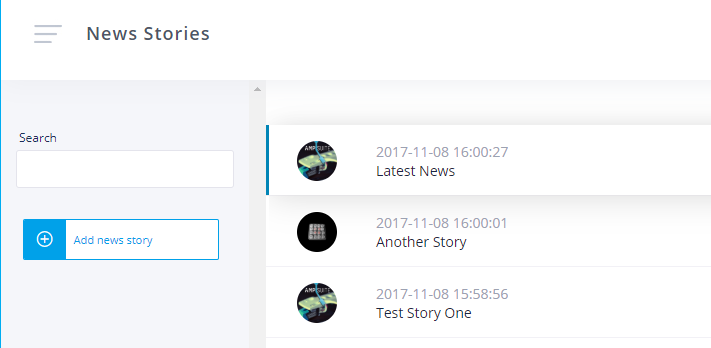
- Title - The title of the news story. Try and keep it short, using a maximum of 30 characters will make sure it displays on a single line on the news letter.
- Tagline - Secondary heading displayed below the title of the story on the news letter to give a little more info and grab the reader's attention. Again try and keep it short, under 50 characters is recommended.
- Thumbnail - Thumbnail image displayed on the news letter, should be 155px wide and 95px high.
- Main Image - Larger image used on the main story page when a user clicks through from the newsletter. Should be 250px square.
- Story Content - The main content of the story - you can use HTML within this field to format your content.
Click the Save Story button to save any changes you have made.
News stories can be included as part of a newsletter by including the News section available within the newsletter designer. Note that unlike Featured Articles, News Stories do not disappear after they have been included in a newsletter, but remain on the system with just the latest stories appearing based on the number of columns / rows you specify in the designer. See the mailing list section of the help guide for more information.
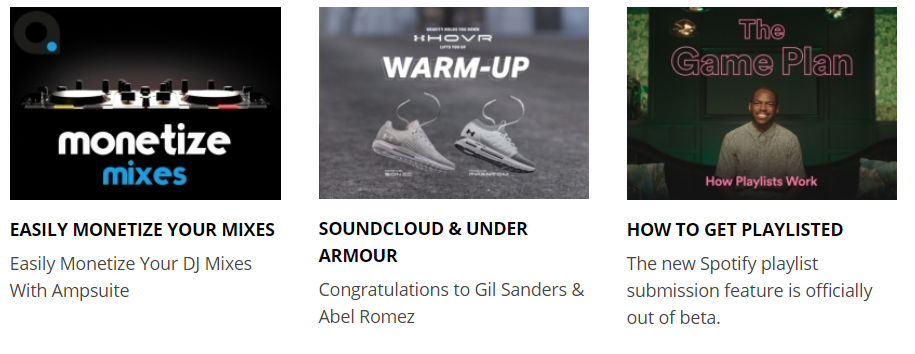
By default clicking a story on the newsletter will take the user to a page hosted on your ampsuite system where they can read the full story. If you wish the link can instead be set up to direct them to an ampsuite integrated website of your choosing. This can be achieved by editing the 'Base URL' setting on the news letter.