Labels
All releases created on ampsuite must belong to a Label. It is possible to have catalog for multiple labels managed under a single ampsuite system. Note that if you require labels to have separate logins, or for artist statements to be split between multiple labels, please speak to your ampsuite representative so that we can enable these features for you, before creating any new labels.
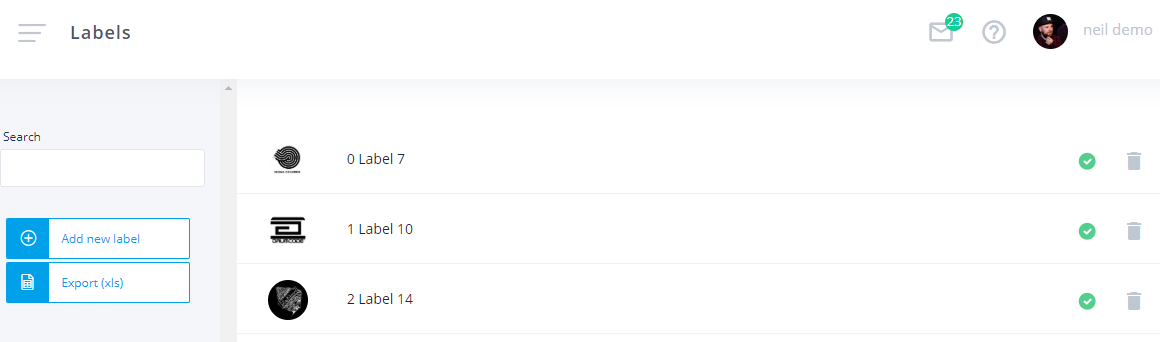
You can use the Add new label button to create a new label, or click on an existing label in the list to edit it's details.
Use this option to define any sub-labels you might have for different types of products.
- Label Name: The name for this Label project.
- Account: This option is only visible if your system has multiple label logins. You must select which login account the label sits under.
- Email: The registered email for this label, required if you use label level accounting, and also displayed in things like promos.
- Website: Primary website address for this label.
- MySpace / Facebook / Twitter / SoundCloud / YouTube: Social media links. These can be useful when linking your ampsuite account to a website to populate each Label page with links.
- Genre 1 & 2: Select the two main recording genres for this label.
- Image: Upload a logo for this Label - this is required for some stores such as Beatport before the label can be setup.
- Compilations Label: Used in accounting, if label info is not supplied in statements and the same catalog numbers or ISRC's exist on more than one label, non compilation labels will take higher priority in matching. e.g. if the same track appears on a single under a non compilation label, and an album on a compilation album, it would be auto assigned to the single on the non compilation label if no release or label information was supplied in a statement.
- Parent Label: Similar to the Compilation Label option above, this is used when deciding which release / track sales should be assigned to if they feature under multiple labels and specific release and/or label information is not provided in the statement. In this case if the track or release appears on multiple releases, and all their labels belong to the same parent label, it will be assigned to a release or track under that parent label.
- Biography: Enter a biography for this Label.
Click the Update Label button at the bottom of the screen to save any changes you have made.