Third Party Licensing
It is possible to keep track of any licensing agreements with third parties via ampsuite from the Licensees screen. When you first open the screen it will display a list of any Third Parties you have set up that you have agreements with.
You can create a new third party by clicking on the Add third party button, or edit an existing one by clicking on them within the list on the right hand side of the screen.
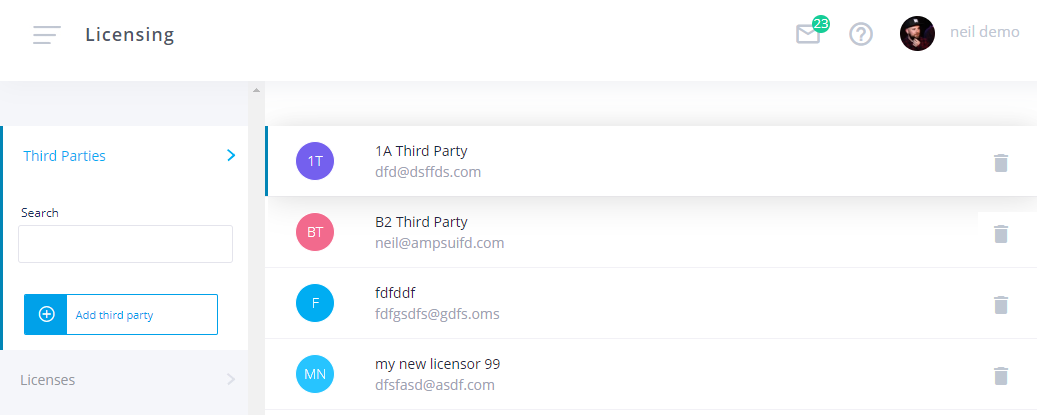
To view any Licences already created in the system click the the Licences tab. This will display a list of licences ordered by due date, along with an Overdue / Paid indicator - so you can easily see which payments are outstanding.
Clicking on a particular licence allows you to edit its details, and view and update any statements attached to it. These sections will be covered below, as they are the same in this screen as they are on when viewed from within a release, which is where new licences must be created from.
Creating Licences
To create a new licence click in to Edit Release from the Releases screen, and click on the Licensing tab located towards the bottom of the left hand column. This displays a similar view to the Licences tab on the Licensee screen, only this time only licences associated with this particular release are displayed.
Clicking on either the Create Licence button or on an existing Licence Name displayed in the list on the right will open the Licence Details dialog (shown below):
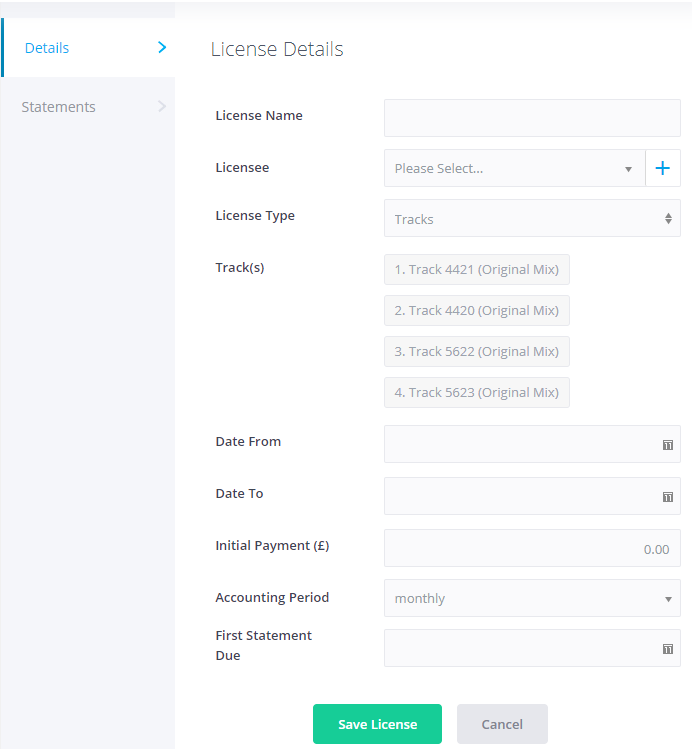
The details of the licence are shown on the first tab, you can create a new third party if required by clicking on the + button to the right of the Licensee dropdown.
A licence can either be related to an entire release, or to one or more tracks on the release.
The From and To Date allow ampsuite to keep track of the licence for as long as it is active. Statements will be automatically generated starting from the First Statement Due date, with new ones created based on the interval set in the Accounting Period dropdown.
You can also enter an Initial Payment amount if one exists.
Click the Save Licence button to save any changes you have made.
Licensing Statements
The Statements tab displays a list of statements for the licence, if you are creating a new licence this will be blank.
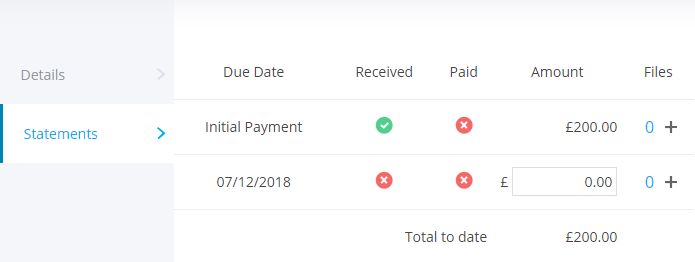
When a new statement is received from the third party, you should enter the 'Amount' in the box provided and click on the red cross in the 'Received' column to mark it as received. The red cross will change to a green tick and a new statement line will be automatically created based on the selected 'Accounting Period'. If you wish to edit a previously entered amount click the green tick in the 'Received' column again to change back to a cross and the Amount box will become editable once more.
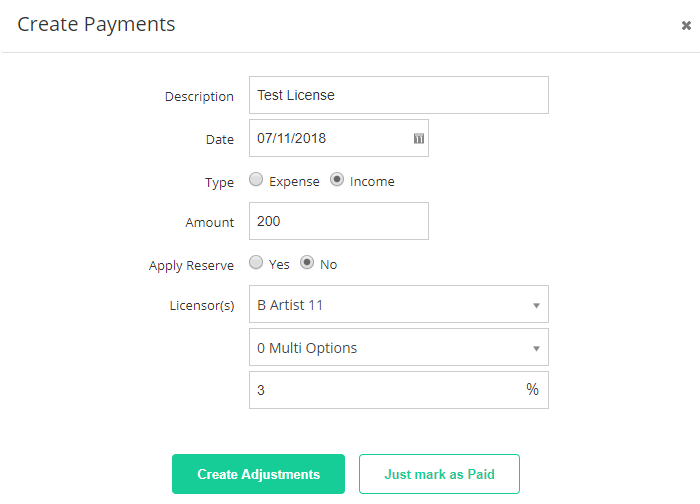
Clicking on the cross in the 'Paid' column will open a dialog which allows you to automatically create payments to artist / label statements based on the contract assignments on the release / track. Check the percentage shares of each licensor are correct and click 'Create Adjustments' to create the payments in the system, or click 'Just Mark as Paid' if you do not wish to create payments as adjustments using this method.
You can attach a copy of the statements you receive in any file for future reference by clicking on the + button under the Files heading at the right of each statement line. Note that these files are for your reference only and are not automatically processed by ampsuite in any way. You can view, download and delete uploaded statement files by clicking on the number to the left of the + icon to display a list of currently uploaded files.