*For more details on creating Contracts in the ampsuite system see the Contracts section of our help guide*
Below the 'Main Details' tab you will see a tab where you can assign 'Contracts' to a particular track - if you have the publishing module enabled on your system you may see two tabs - one for 'Recording Contracts' and another for 'Publishing Contracts'. While assigning contracts works in the same way in most regards for both types, we will discuss some particulars relating to publishing contracts at the end of this section.
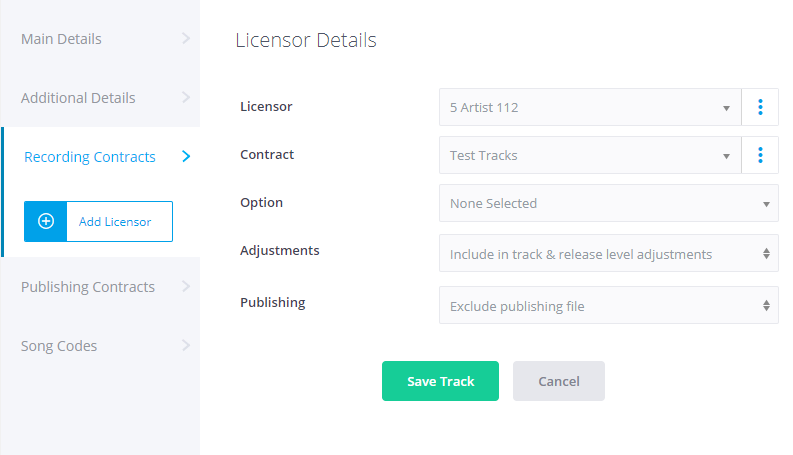
Each track can be assigned to one or more Licensors (a licensor is a generic term for someone who you will be accounting too and may be an artist, a label or an 'external' licensor). For each Licensor assigned to the track you must select which of their Contracts the track is associated with, this defines what percentage of the sales the Licensor receives.
You can exclude a licensor from being assigned imported adjustments associated with this release or track by ticking the [Exclude this licensor from track & release level adjustments] checkbox. In this case adjustments will be divided among the remaining licensors on the track as if this licensor were not present. For more information on assigning adjustments and expenses to a specific release or track see the Importing Adjustments & Expenses section of the help guide
Default Contract Assignment
By default the drop downs for a new track will be set to 'Assign to First Licensor' and 'Assign to Default Contract'. The Licensor in question will depend on your Aampsuite set up, for example if your system is set up for Artist level accounting then ampsuite will assign the track to the first artist listed on it. Note that if there are multiple artists on a track you will need to set up the licensor and contract assignments manually to reflect this, as by default ampsuite only ever automatically assigns tracks to the first artist listed on the track.
The Default Contract is as defined for that licensor within your accounting setup (see the licensors page for more information on licensor and contract setup) and will be signified with a green tick in the 'Default' column of their contracts listed on the Licensors screen.
Manual Contract Assignment
If you wish to manually assign or change the Licensor(s) and/or Contract(s) associated with the track simply select the desired Licensor and Contract from the drop down menus.
You can add additional licensors by clicking the Add Licensor button in the left hand column. You can remove an additional licensor by clicking on the ... button to the right of the licensor drop down and selecting the Remove Licensor option. Note that it is not possible to remove the first licensor shown on the screen.
Further options for creating and editing licensors can be found by clicking on the ... button to the right of the licensor drop down and act as a shortcut to options found on the Licensors screen, such as creating or editing existing contracts. Please see that section of the help guide for more information on creating and editing licensors and contracts.
Note that if you use the New Contract option from this menu and wish to send out a digital contract for the licensor to sign, upon clicking the + button on the Track Details tab of the contract the track details will be prepopulated with those entered on the release track details.
To save changes made to the tracks contract assignments you must click the Save Track button at the bottom left hand side of the dialog. If you close the track dialog without saving all changes will be lost.
‘Quick’ Contract Assignment
Quick contracts are an additional option within the track contract assignment tab that allow you to quickly create release specific contracts, without having to manually enter all of the details required when usually creating a new contract. It is also a useful option if you wish to send out contracts to be signed using the Digital Contracting Module, and a smaller quicker option to issue contracts to multiple licensors attached to the same track/release
To create a quick contract, on the Contracts tab of the track first select the Licensor you wish to create a contract a new contract for, then select ‘Create Quick Contract’ from the Contract dropdown below:
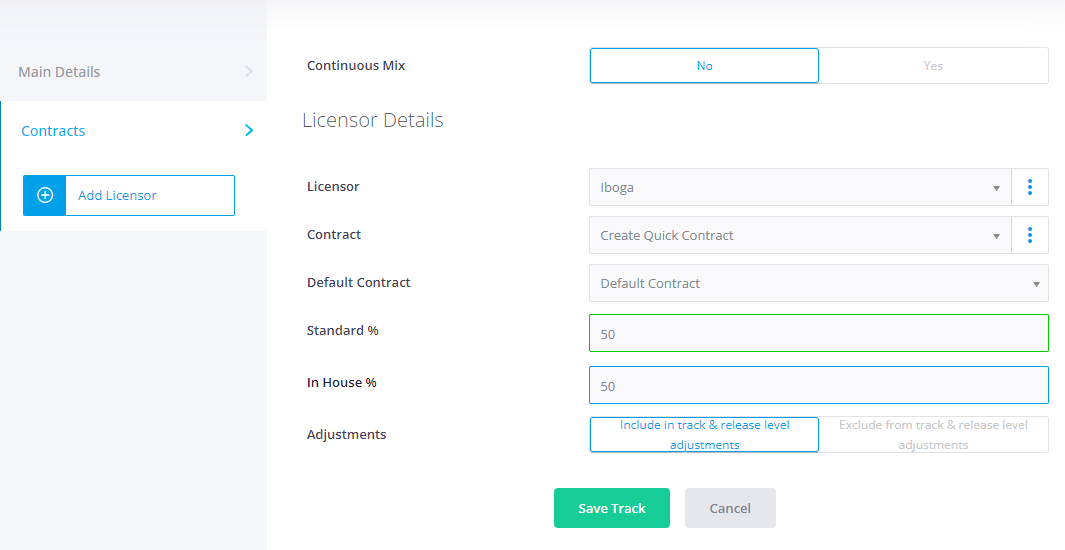
Note that if the licensor does not yet have an email address entered in the system you may be asked to add this first, before you can create a quick contract for them.
Next, select the Default Contract you want to base this new quick contract off of, this is mainly used to select which contract text will be pulled in the contract if you are sending it out to be signed by the licensor – but will also be used for other settings such as the Reserve Withheld and Cross Collaterise options.
NOTE – We recommend you not add text in your ‘quick contract’ template which refers to a specific royalty rate payable, as the system will automatically add the track names & the applicable royalty rate from the data you enter (as described below). As an alternative we suggest you could you use text which simply refers to ‘you will be paid the royalty rate as indicated next to each track listed at the top of this agreement’ or something to that effect
You can now enter a percentage in the ‘Standard %’ box – this will be used for all of the usual percentage associated with a contract in ampsuite (bundle, streaming and download). If the In House Compilations accounting option is enabled on your system, you may see an additional box to enter this value also.
You can add additional licensors using the ‘Add Licensor’ button if required, and repeat the steps above to create a quick contract for them.
Quick contracts have the benefit of automatically pulling the track information in to the Track Details tab of the contract, and also group all percentage splits for a particular release / licensor under a single contract (e.g. if the same artist had a 50% split on one track of a release, and a 25% split on another – Quick Contracts will create 2 linked sub contracts for this, so the artist will only see a single contract with both percentages / tracks on when they login to sign it.
Contracts created using Quick Contracts will be automatically named using the title of the release they are associated with.
NOTE - that once a Quick Contract has been signed, it is not possible to assign additional tracks to it, or alter any of the percentages or other details on the contract.
Finally when you are ready to issue the contracts to all licensors associated with the tracks within a release you can navigate to the ‘Contracts’ tab inside the release & issue these using the ‘Email to Licensors’ button.
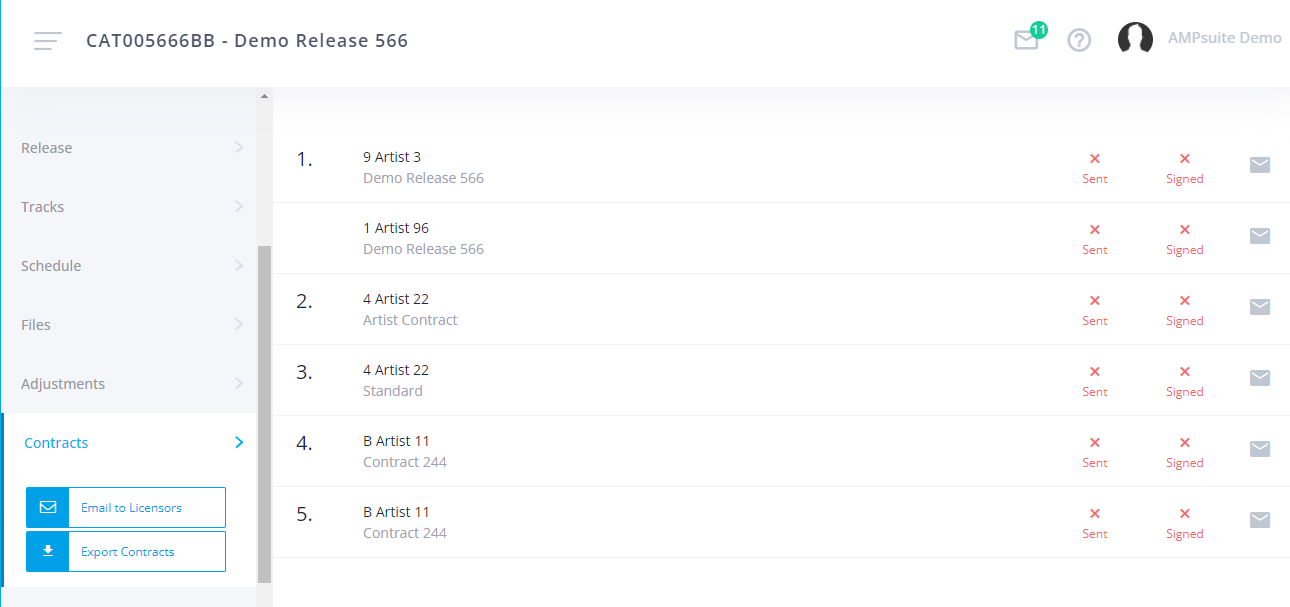
NOTE – you can also monitor contract send & sign status in the same Contracts tab, and resend contracts individually to licensors if required by clicking on the Email icon to the right of their contract in the list.