This screen allows you to create exports from the sales data you have imported into ampsuite. Track and release data is taken from the assignments/corrections made during import and only imports without errors are included in the data. This export does not include adjustments/expenses (unless they were imported using the ampsuite adjustments import and had 'Treat as Sales' marked as 'Yes').
To create a new export simply click the New export button, a form will open with the following options:
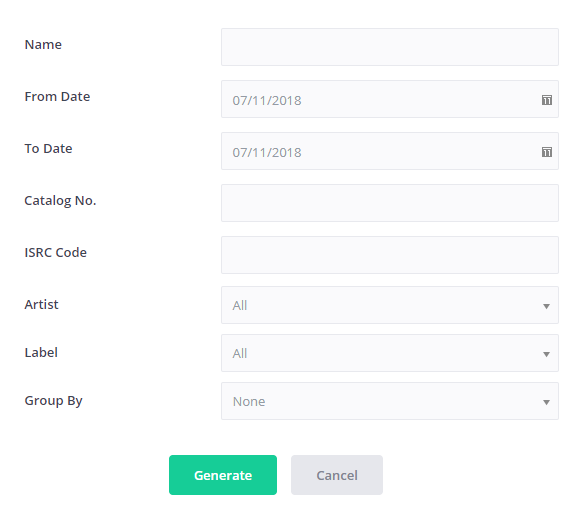
- Name - The name of your export. All exports are saved for future access so make it descriptive so it's clear what it is if someone downloads it at a later date!
- From/To Date - The date range of the export, this is taken from the date selected when uploading each file and does not use the dates within the data itself as this is not present on all statements.
Catalog No. - Used to filter the data to a single release. As you type a catalog number here a list of matching releases will appear - click one of the releases in the list to select it. To export data for all releases leave this field blank. It is not currently possible to apply a filter for multiple releases.
- ISRC Code - Can be used to filter data to a single track. If no Catalog No. filter is applied then all versions of this track will be included. If a Catalog No. is selected the ISRC Code field will change into a drop down with all available tracks on the release as well as an 'All Tracks' option. If there are multiple versions of a track only sales associated with the specified release will be included if the Catalog No. field is not blank.
- Artist - Filter data to a specific artist. This only looks at the first main artist associated with a track and is not related to licensor or contract assignments.
- Label - Filter data to a specific label. This is based on the label associated with the release and is not related to licensor or contract assignments.
- Group By - This field can be used to group the rows of the export by various parameters. Selecting the default 'None' is the same as if all available parameters were selected and will give the most detailed report. Selecting for example 'Album Label' will produce a reduced file where each row has the total sales for a label within the period. It is possible to apply multiple 'group by' parameters to an export - each time you select a group by value a new dropdown will appear. Each selected group by parameter will appear as a column within the final export.
On clicking the Generate button ampsuite will begin to process your export - depending on the size of data included within the export period it may take anywhere from a few seconds to several minutes for your export to be ready. Once your export is ready the spinning processing icon will change to a download icon - click this to download your export in csv format. You can delete previously generated exports by clicking the trash can icon at the far right of a row.
Data within exports is static and will not change once it has been generated even if changes are made to associated imports such as reassigning contracts or changing percentages. As only data from imports which are error free is included on the exports it is advised to make sure that no import processing is ongoing while generating an export as this may result in missing data.