Retailer Sales Reports
ampsuite processes direct feeds from online retailers where available to bring your latest sales and subscriber stats directly into ampsuite for easy analysis. Reports are updated on a daily basis, in most cases there is a 48 hour lag from the date of sale to the information being available from the retailer.
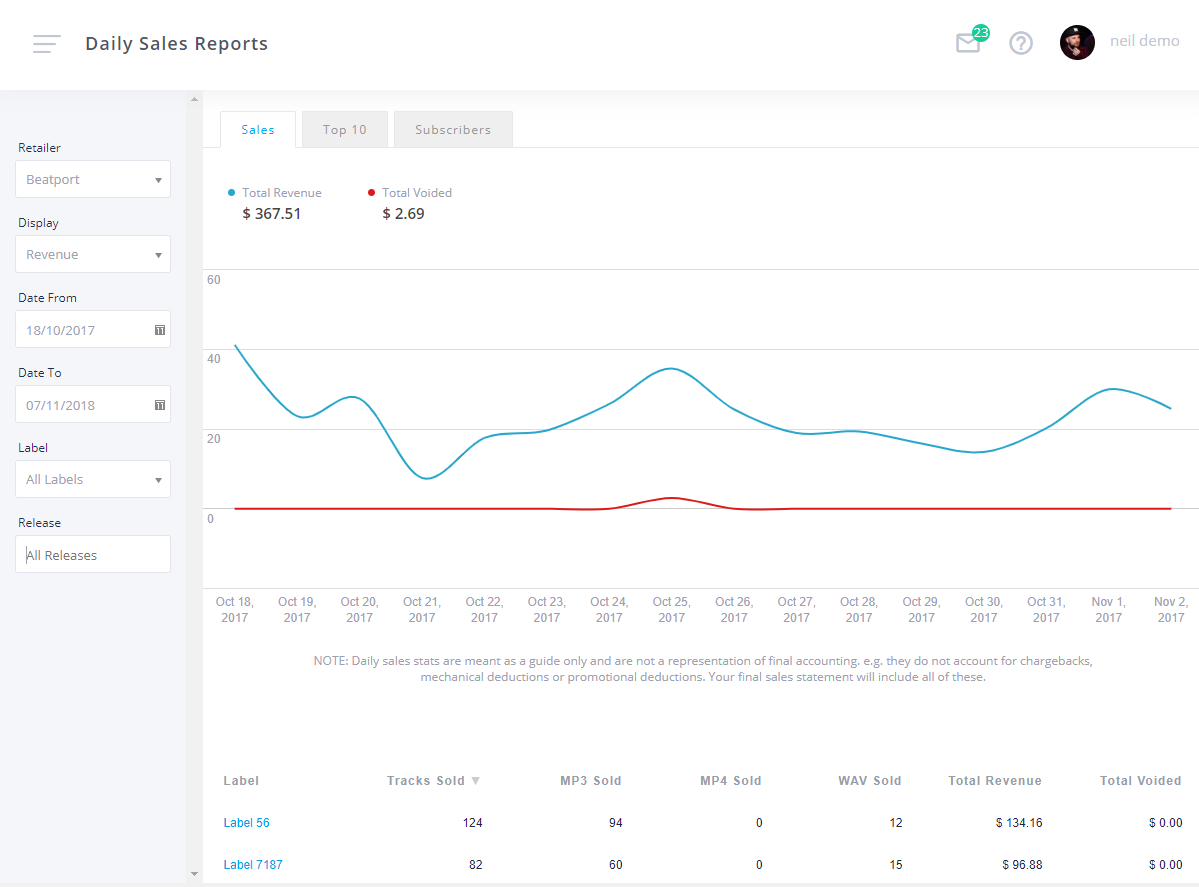
Retailers currently supported by ampsuite for daily sales feed include Beatport, Deezer, Google Play, Juno, Spotify and Traxsource.
If you use ampsuite's distribution your reports will update automatically, and they are adjusted to take in to account your distribution fee paid to ampsuite however there may still be slight discrepancies between this data and your final accounts due to a number of reasons - these reports can however give you a good up to the minute view of how your releases are performing.
Login Details
If you do not use ampsuite distribution you can enter your own login details for each of the retailers back end systems in to ampsuite to pull the data from your account - to do this simply click the cog icon in the top right of the blue title bar and enter your details for the currently selected retailer.
The details required for each retailer vary slightly due to the method used to collect the data, for example Beatport requires you to enter your Baseware username and password, Traxsource requires an API key, and Juno delivers daily sales via FTP upload. If you require help setting up any of these feeds please contact your ampsuite representative.
Upon clicking the 'Update Settings' button your login details will be saved - please note there may be a delay of up to 24 hours before data starts showing within ampsuite after entering your login details.
Purchase Links
As well as pulling daily sales stats the system will also pull in links to purchase releases on each retailer (where available). These will automatically appear under the Retailer Links listed within each final release.
Sales Reports
The screen displays data for a single retailer at a time, and the options available to view vary between each retailer depending on the available data supplied by them. At the top of the graph you will see a number of tabs, these include Sales and Top 10 which are visible for all retailers, as well as additional retailer dependent options, such as subscribers at Beatport and Playlists at Spotify. Simply click on a tab to display that report.
You can change which retailer to view stats for using the dropdown at the top left of the filters. Note that the below options may vary slightly between retailers based on the level of data supplied by them. For example Traxsource only supply figures for the number of units sold rather than the monetary value of the sales.
Clicking the link on any row of the table will drill down a level into the data. There are 3 levels of data on this report - Label > Release > Track. Click the '< back' link in the top left of the tables heading row to go back a level (do not use your browsers back button).
Top 10
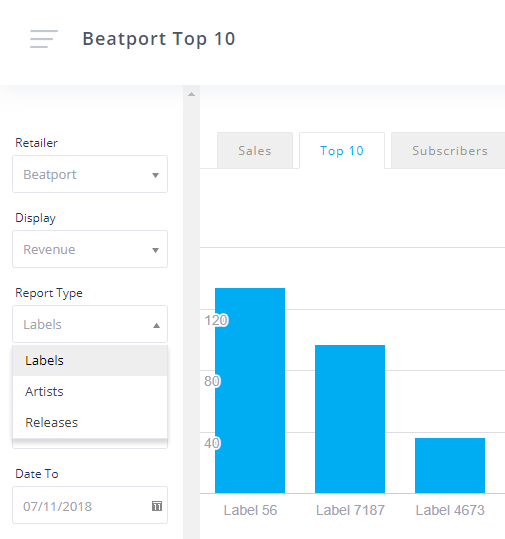
The Top 10 report can be used to see your top 10 artists, labels and releases within a period. You can use the 'Report Type' filter (pictured) to change between the 3 types of report. If either Artists or Releases is selected there is also the option to filter the results to a single label - the default is 'All Labels'. You can also change the date range and switch between Revenue and Units in the same way as the Sales Report described above.
Beatport Subscribers
The subscribers report allows you to see the current number of subscribers on Beatport for your artists and labels. The graph will display the top 10 artists or labels (depending on your selection from the radio buttons at the top right of the screen) - a full list of artists or labels is shown in the table below.
Spotify Playlists
The Spotify Playlists report displays information on which playlists your tracks were included on in Spotify during the selected period, ordered by the total number of streams generated from that playlist within the period.
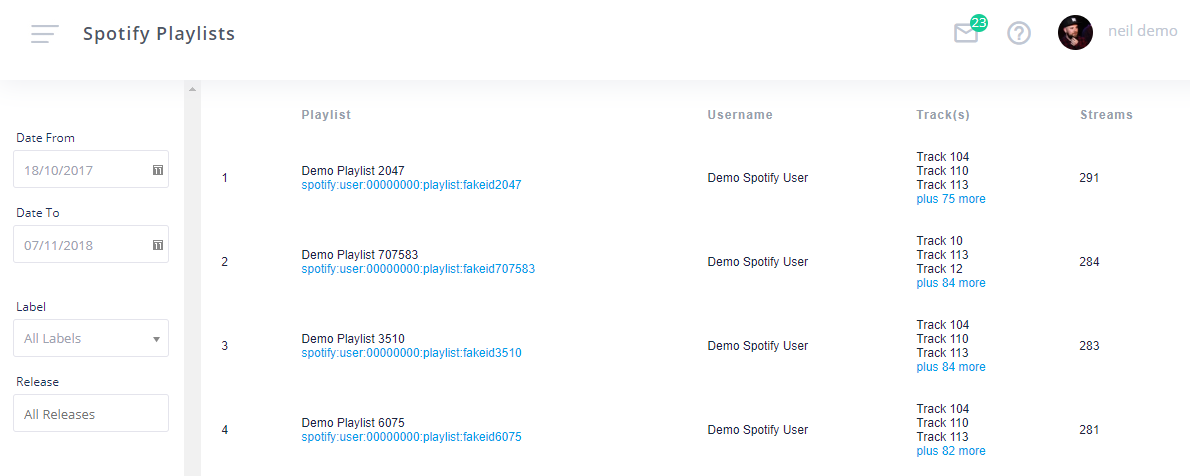
If more than one of your tracks is present on the playlist the Streams value is the combined total of streams for all of the tracks, you can see which of your tracks were included in the playlist in the Track(s) column - if there are more than 3 tracks you can click the 'plus x more' tracks link to display the complete list.
A playlist title as well as clickable link to view the playlist in Spotify are also shown, as well as the username of the playlist owner where available. Note that due to varying levels of data privacy applied to the Spotify data feed these may not always be displayed for individual users.