You publishing catalog can be managed through the Releases screen, you can either group tracks under the albums / singles they were originally released under, or you also have the option to make Playlists, or ‘Selected Works’ releases – which featured a number of tracks for a single writer grouped together under a single ‘release’ in ampsuite.
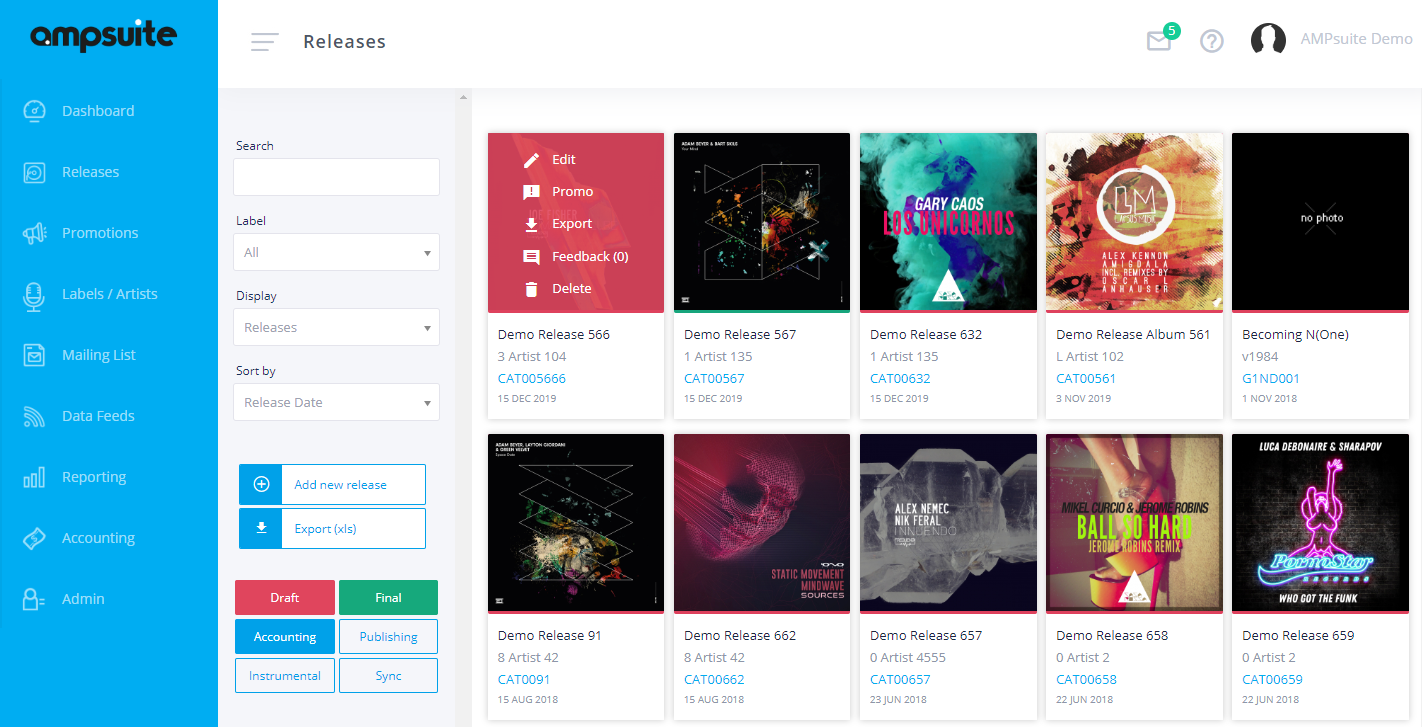
Release and track data entry works in much the same way as for the label royalty and distribution system, and is covered in full in the Releases section of the help guide.
A few additional options related to catalog only available when the publishing module is enabled are covered below.
Playlists, Pitches & Publishing / Selected Works Releases
When creating a new release, you will see an additional dropdown to select the type of release you would like to create at the top of the form:
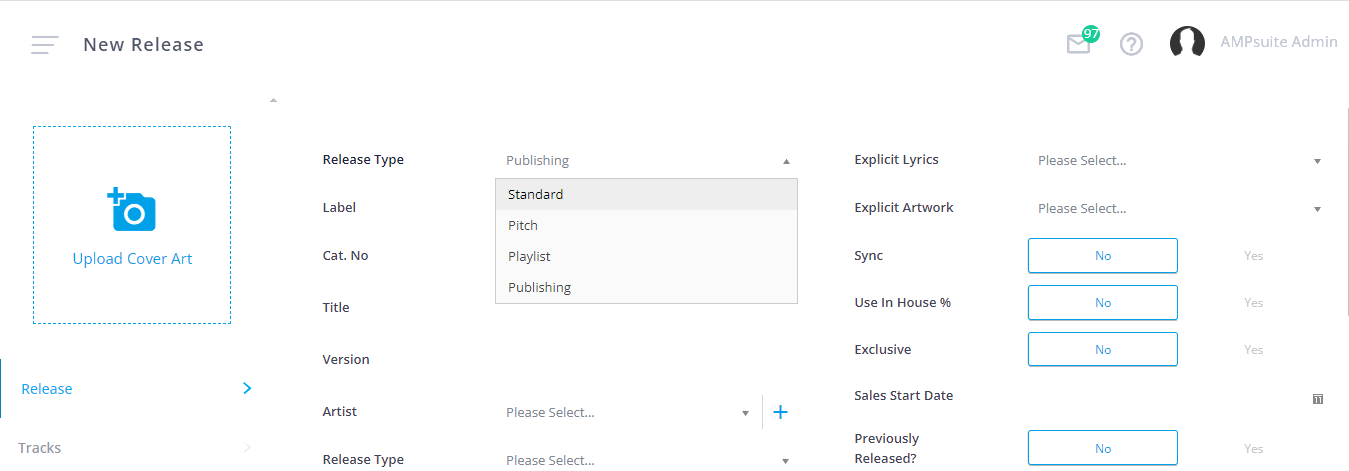
Available options include:
- Standard: Used to create a standard Single / EP / Album
- Playlist: You can create a Playlist to group together a number of tracks into a single ‘release’ – this can include new tracks not already on the system, or existing tracks pulled in from other releases.
- Pitch: You can create a Pitch to compile a number of tracks into a single playlist which you may wish to then share with 3rd parties. It has all the same functionality as a Playlist – but allows you to filter between standard Playlists and Pitches when viewed from the Releases screen
- Publishing: A Publishing (or ‘Selected Works’) release is a release that consists of a number of tracks composed by a single writer, that do not already appear under another release in ampsuite. They are generally used to add tracks needed for accounting purposes which have not already been added to the system, and are auto generated when using the ‘create’ option to fix unknown track errors from the Accounting Imports screen [LINK].
Additional Track Details
If the publishing module is enabled you will see an extra tab under the Track Details data entry form called ‘Additional Details’.
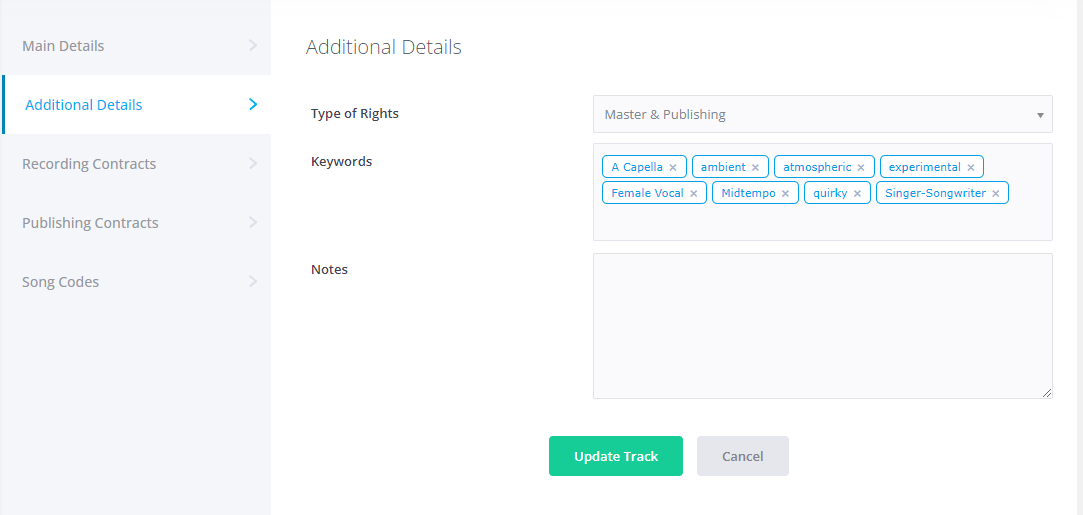
These include:
- Type of Rights: You can record if you have both Publishing & Master rights for the track or a combination of both.
- Keywords: You can add a custom selection of keywords to the track, this can be useful when finding tracks to add to a pitch, and might contain for example words to describe the mood or a piece or the type of instruments used.
- Notes: An additional notes field which is displayed when hovering over a track in the Release Compiler page – for example you might want to record here if a third party needs to be contacted before a track can be pitched.
The above fields are also available as filter options on the Release Compiler screen [LINK].
Song Codes
Ampsuite uses the Song Codes included within incoming publishing statements to match each line of revenue to the corresponding track on ampsuite. As different organisations may use their own internal song codes, as well as standard ones such as ISWC’s – ampsuite allows multiple Song Codes to be entered against each track. A track may have multiple Song Codes assigned to it, but a particular Song Code can only be assigned to one track.
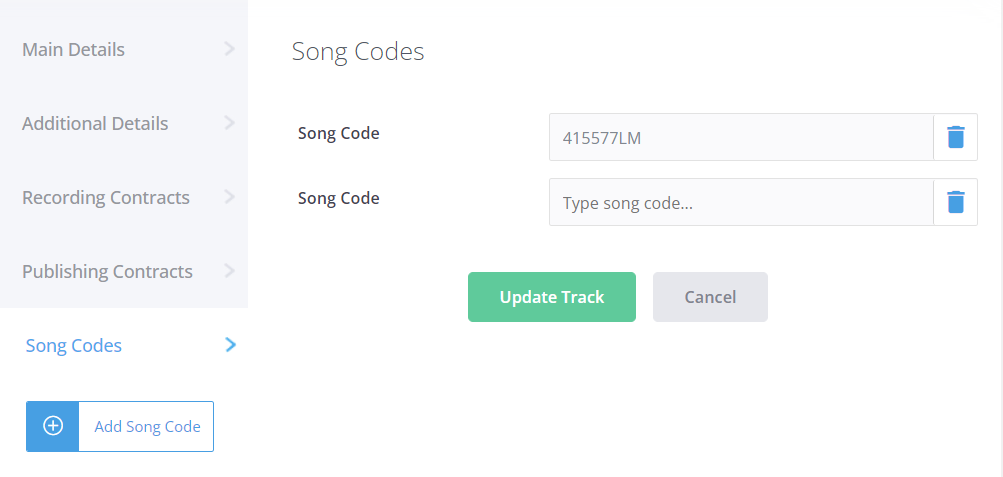
Song Codes can be viewed and updated from the Song Codes tab under the Track Details form from within a release. Depending on your system settings, you may also have to add the ‘Source’ of the song code, along with the code itself – to signify which organisations statement this code can be found in – this allows for the rare case where the same code is used by two different organisations to represent different tracks.
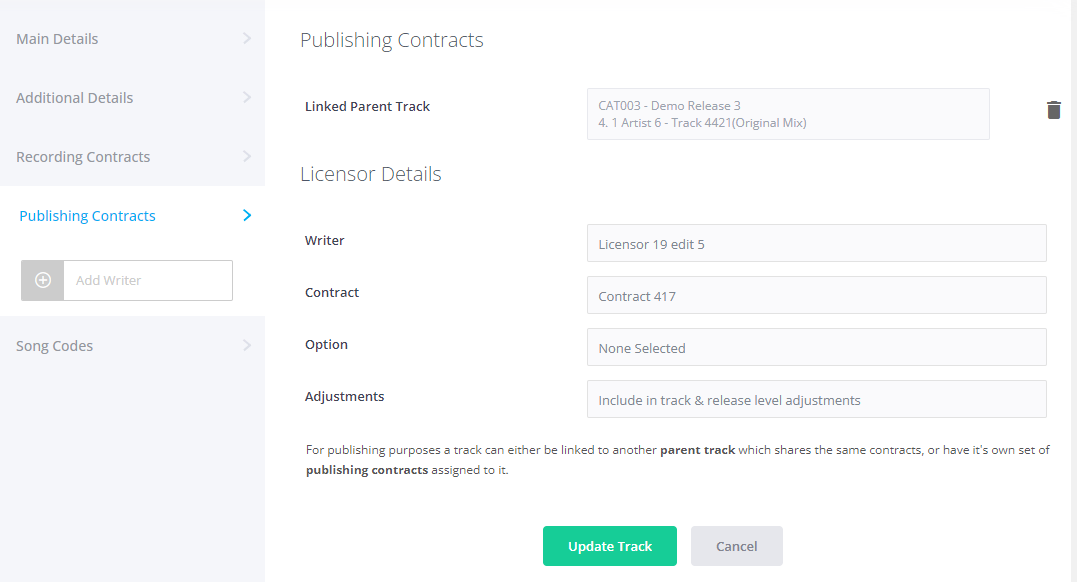
As mentioned previously, a specific Song Code can only be assigned to one track within ampsuite, if the same track is reused on multiple releases, the publishing contracts and song codes can only be edited on the original version of the track, referred to in ampsuite as the ‘parent’ track. If the version of the track you are currently viewing is not the parent, you will notice that the ‘Add Song Code’ button is greyed out, and the existing song codes cannot be edited or removed. To access the parent version of the track, click on the Contracts tab of the Track Details form, and click on the ‘Linked Parent Track’ field at the top of the form (see screenshot below) you can then edit the song codes from that version of the track: