You can view all releases in your ampsuite catalog by selecting 'View Releases' in the 'Releases' sub-menu.
On the left are a number of filters that can be used to quickly find the release(s) you are looking for - you can enter search by a number of things using the 'Search' box - including Catalog Number, UPC, Title and ISRC. Note that titles must be spelled exactly as on the release, including any punctuation and accented characters.
There are also additional options to filter by label, and change the order in which releases are displayed (the default is by release date, newest releases first). You can also change the view to display by track rather than release - see 'Search Tracks' further down this help page for more details.
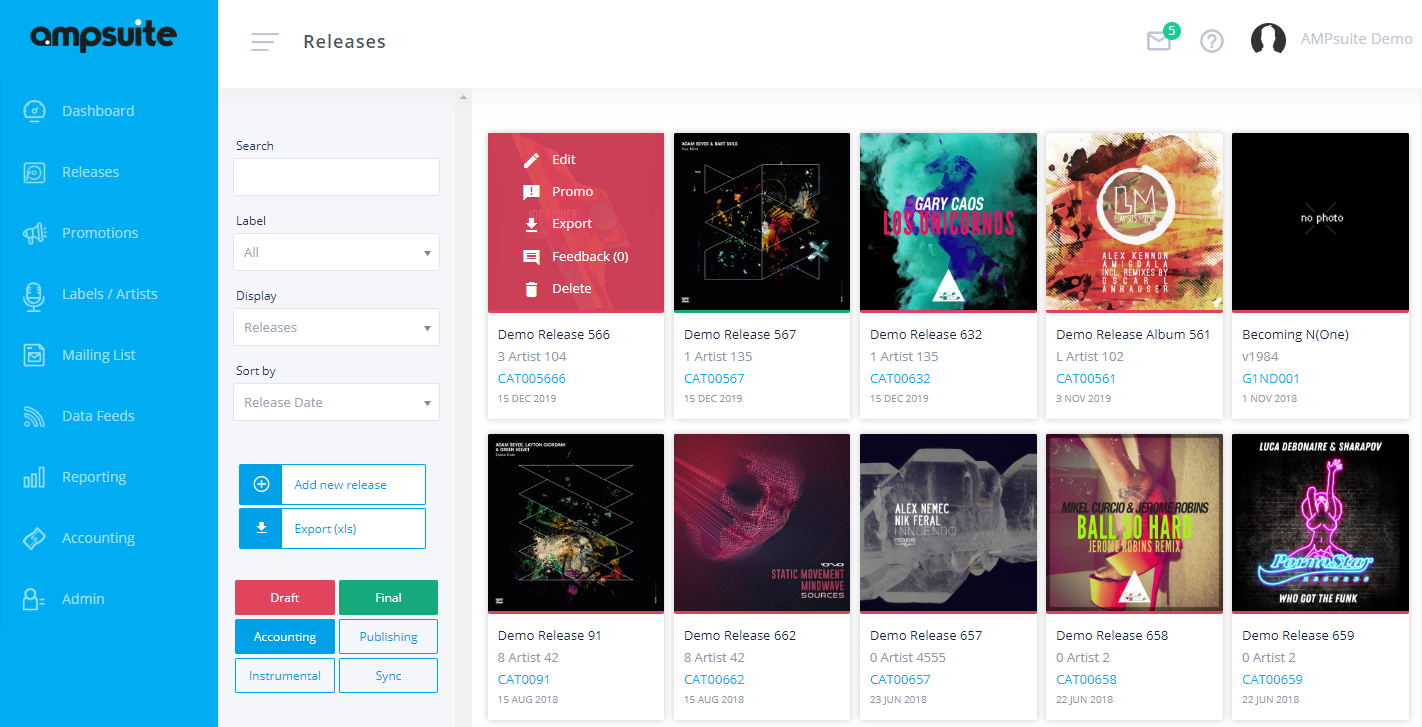
You can also filter releases using the selection boxes at the bottom of the left hand column, the options here may vary depending on which modules are installed on your system (for example 'Publishing').
- Draft / Final: Filter the releases by draft/final status
- Accounting: Products created via the accounting import error correction which may not contain full details yet. You can edit these to complete any missing mandatory fields at which point they will become 'standard' releases.
- Publishing: Releases marked as 'publishing' only - which will contain only a subset of details relating to the writer associated with the release
- Instrumental Filter to show only releases / tracks which are marked as instrumental
- Sync: Filter to show only releases / tracks which are marked as sync
If a product has been finalised, a green-strip will appear at the bottom of the cover-art; the strip will be red if the product is still listed as a 'draft'.
The Mouse-over Menu
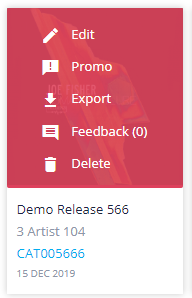
By moving your mouse over any release, you will be able to choose from one of 5 options.
- Edit: View and make changes to the release.
- Promo: Create a new promo email for this release
- Export: Download a .XLS spreadsheet version of the Metadata for that product; useful for if you might need to provide this to a third-party or to keep elsewhere for your records.
- Feedback: If available, see all feedback left by your promotional partners about this release. The number in brackets indicates how many people have left feedback so far.
- Delete: Delete this product from ampsuite and all associated recordings (individual audio recordings will however be retained in instances where they are listed elsewhere as part of another product).
IMPORTANT: We do NOT recommend deleting old releases in most cases, as they will be required for accounting, it is generally best to issue takedowns to stores but leave the release in ampsuite for future reference.
NOTE: In previous versions of ampsuite you could add/remove default expenses from this menu, this can now be done from the 'Adjustments' tab of the Edit Release screen.
Search Tracks
It is possible to change from the default Release based view, to a Track based view by changing the 'Display' dropdown in the left column. This view may be useful when wishing to edit or view tracks on an individual basis, such as when using the publishing module.
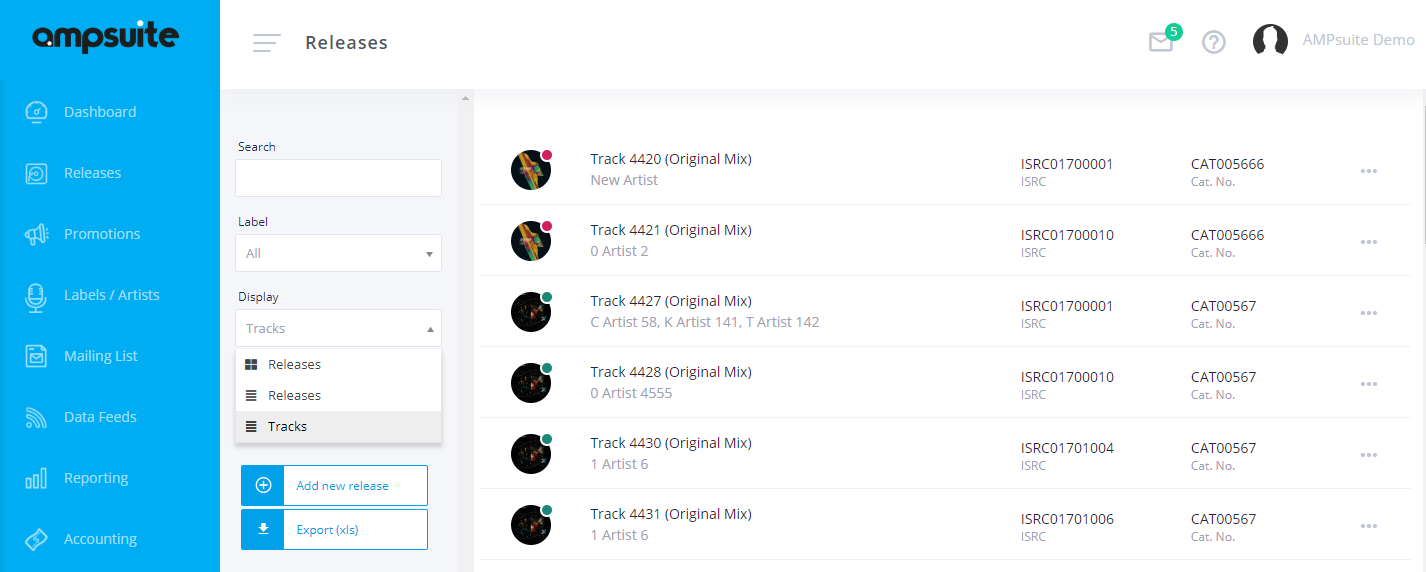
In this track based view (shown above) you can view and edit the track details and contracts directly by clicking on the track title. You can also enter the associated release by clicking on the ... menu icon on the far right of the row, and selecting 'View Release'
This menu also allows additional options such as to share or download the track, or copy details about it to your clipboard to allow you to easily cut and paste track details into emails and documents.