Analytics & Feedback
Once your promotions have gone out to your contacts, ampsuite will be taking note of how and when they are accessed, by who, and what they have to say about it.
Select Promotions and then Promotions again from the main menu, to view the main overview of your recently sent promo mailouts, as shown in the screenshot below.
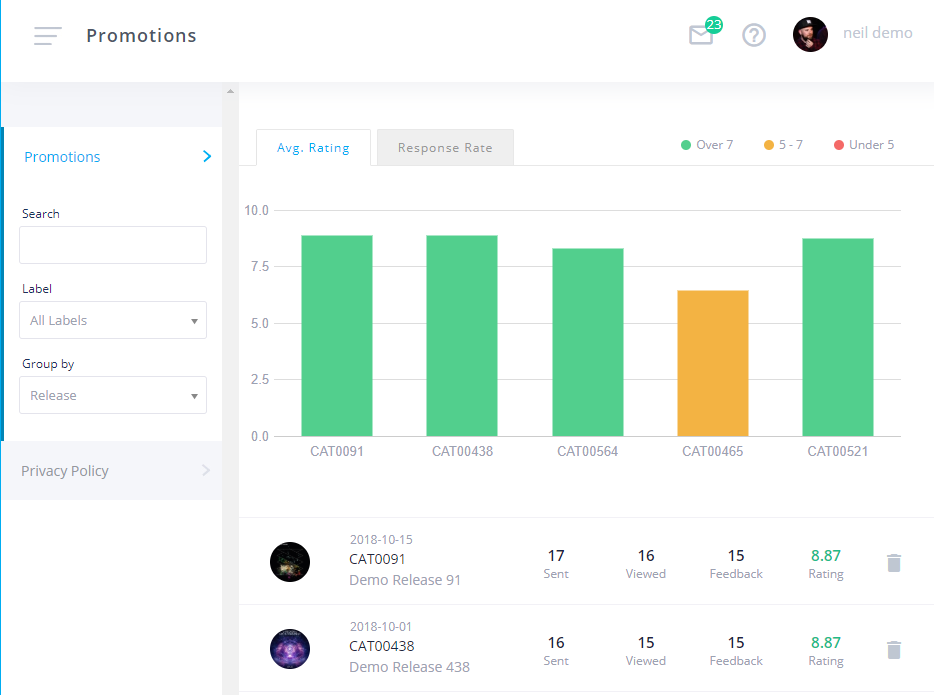
By default multiple promotions for the same release are grouped together into a single row of stats, you can change this by changing the 'Group By' dropdown in the left hand filter column from 'Release' to 'Promotion' to view each promotion individually.
You can also filter the screen to show only promotions by a certain label using the 'Label' dropdown in the top right of the blue title bar.
Each row contains the following information:
- Sent - The number of people you sent the promo to (this include people who have not yet opted in - so may not have actually received the email yet)
- Viewed - The number of people who viewed the promo by clicking through to the feedback page
- Feedback - The number of people who left feedback on the release
- Downloaded - The number of people who downloaded one or more of the tracks
- Rating - The average rating of the release
You can delete a promo by clicking on the trash can icon on the far right of the row. If multiple promo mailouts exist for the release a popup will appear asking you to select which mail-out you wish to delete. If the promo mailout has already been sent, contacts will no longer be able to access the feedback page via the links they were sent once it has been deleted, but will instead see a message informing them the promo has expired.
Privacy Policy
By default when you first send a new contact a promo mailout, they will receive an opt-in email, asking them to consent to receive mail outs, and agreeing to the default ampsuite data protection and privacy policy.
If you wish to add your own text to this email you can do so from the Privacy Policy tab on this page. Note that any text you enter here will be shown in addition to the default ampsuite privacy policy email, it will not replace it.
If you have updated your privacy policy and need to regain consent to the new policy from existing contacts, set the Resend to Contacts? option to yes - note this will effectively set all contacts back to being opted out from mail outs, until they agree to the new policy.
Click the Update Policy button at the bottom of the page to save any changes you have made.
Detailed Feedback
Clicking on a release in the promotions screen will take you through to a page with detailed information about feedback left for that release.
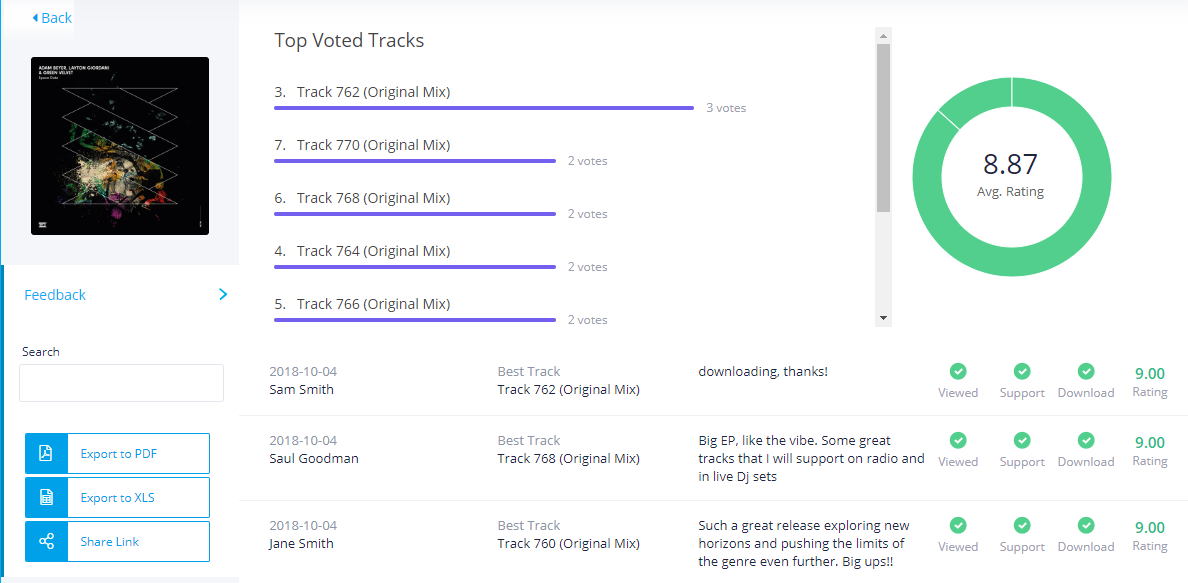
The top half of the screen displays two graphs - the right graph shows the spread of ratings for the overall release (as well as the average rating) while the left graph shows the most popular tracks on the release.
The table below shows a breakdown of the detailed feedback for each contact, the most recently updated feedback will be shown first.
There are various options for downloading and sharing feedback with others:
- Export to PDF - Download a PDF version of feedback to send to others - you can filter to only show feedback from people who rated the release above a certain number.
- Export to XLS - Download a Excel worksheet containing all the feedback left for the release so far.
- Share Link - Clicking this will open a page which allows users to view this release's feedback without having to log in to ampsuite. Simply cut and paste the link for this page from your browser's address bar and send to whoever you wish to share it with. Only rows where the contact has left feedback will be displayed in this view and access to other releases will be hidden to users who are not logged in.
Downloads
Click the Downloads tab to view a complete list of all times tracks from this promo have been downloaded. This includes the date and time of the download, as well as which format the contact downloaded, and their IP address. This may be useful to check if you suspect a contact may be sharing their link with others, and you can spot multiple downloads of the same track from different locations. Remember though that DJ's do tend to travel a lot, so seeing a contact access from multiple locations doesn't necessarily indicate they have shared their link with someone else!
Edit Promo Details
Click the Edit Details if you wish to edit details of the mailout - such as the start or end date. Note that if the mailout has already been sent then it will not be possible to edit the Start Date or Subject.
If you have sent multiple mail outs for a single release you can select the one you want to edit from the Promo dropdown at the top of the form.
Click the Save Changes button at the bottom of the page to update the promo with any changes you have made.