Contact Lists
The Contacts List pages allows you to create lists to organise your promo contacts, making it easy to select 1 or more lists to send each promo mailout to, rather than having to select contacts individually.
To create a new list click the Add new list button, or to edit an existing list, click on it within the main list on the right hand side of the screen, the data entry form will open as shown below:
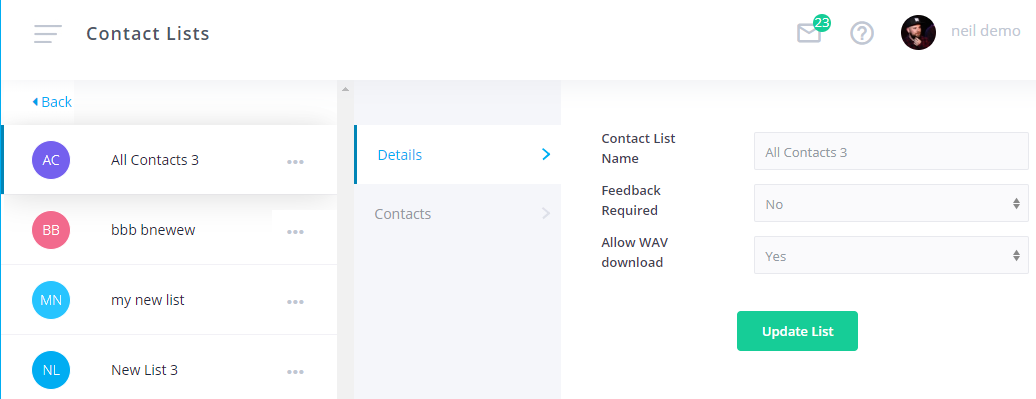
Firstly give your list a name so you can easily identify it when sending out a mailout. You can also set whether Feedback is Required before the contact is allowed to download the tracks (they can still preview them using the in built web player) and whether or not to Allow WAV download for contacts on the list. If WAV download isn't allowed, only MP3 versions of the tracks will be available to download.
You can Export a contact list by clicking the ... icon to the right of the row, and selecting Export Contacts.
You can Delete a list by clicking the ... icon to the right of the row, and selecting Delete List. Note that this only deletes the contact list itself, any contacts which were in the list will still be present on the system, and they will still be part of any other lists which haven't been deleted.
Assign Contacts
To assign contacts to a list, first select the contact list you wish to add them to by clicking on it (as above) and then click on the Contacts tab. Initially this will display a list of contacts already assigned to this list (or may be blank if it doesn't have any contacts assigned to it yet).
Click the Edit Contacts button to begin editing the contacts, as shown in the video below:
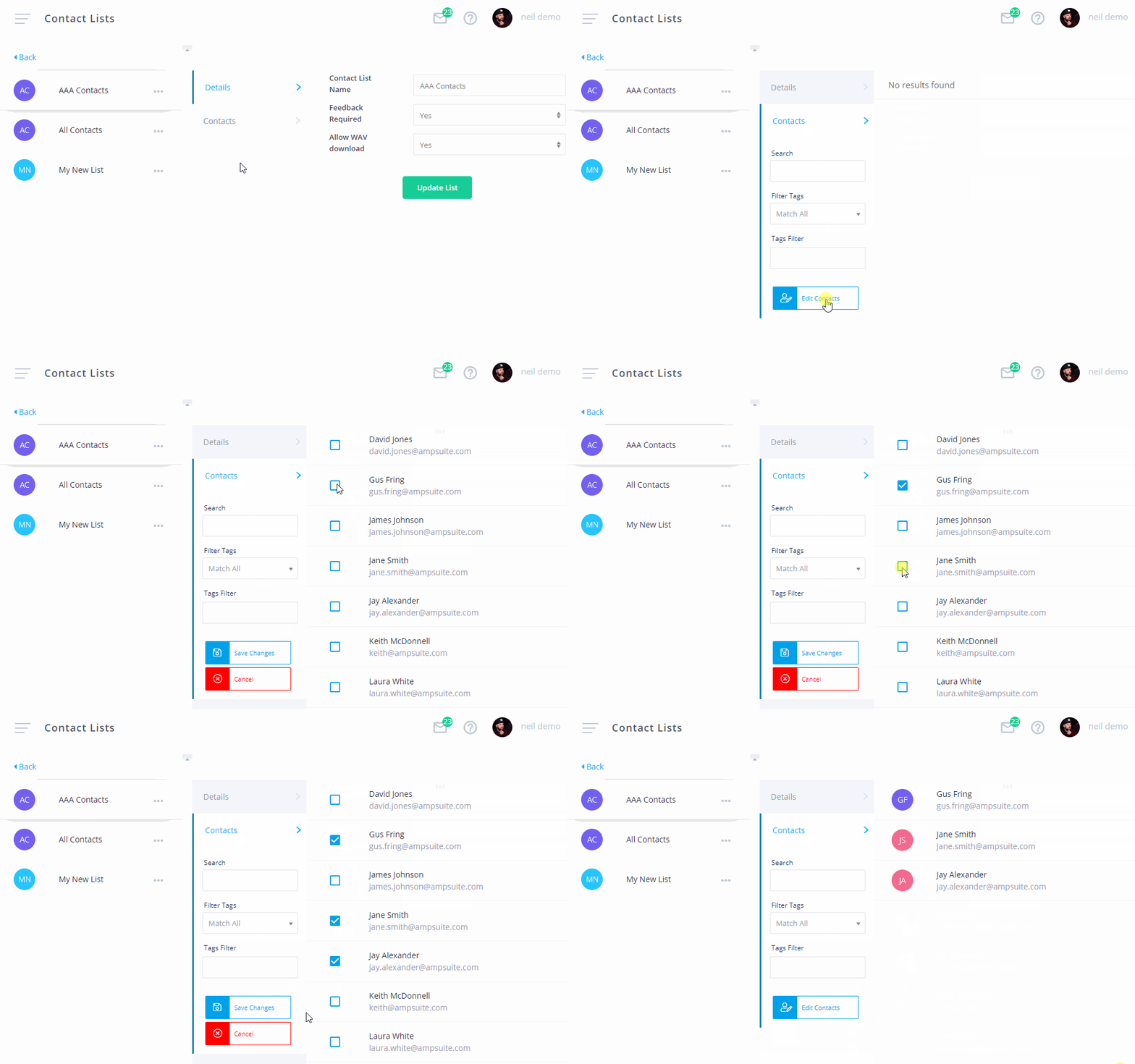
To select a contact to add to the list simply hover over it and click the blue checkbox to the left of the contacts name / email - it will change to a blue tick to show it has now been selected. You can unselect a contact by clicking on the checkbox again to remove the tick.
You can use the Search and Tags Filter on the left to find particular contacts, don't worry, any contacts you have already selected will be remembered even if they don't show on the currently filtered list.
Once you have selected all the contacts you wish to add, click the Save Changes button to save the list. If this is a newly created list, remember to go back to the Details tab and click Update List to create the new list. There is no need to do this for an existing list you are editing, unless you have also made changes to the name or Feedback / WAV Download options that you still need to save.