Promo Styles
You can customise the style of your promotions by clicking on the + icon next to the 'Style' dropdown on the main Promotion creation screen. This will open a pop up window which displays how your promotion will look. In the top right hand corner of the window are options to edit the style of the promotion.
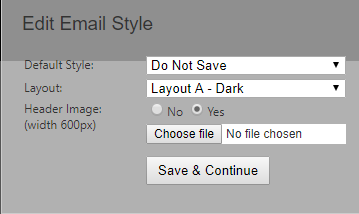
Edit Email Style
The first screen displayed will be the Email style - this is how the email will look when it is first received by the contact. Available options include:
Default Style - Select which of your saved styles you wish to edit. If the dropdown is left on an already saved style your new settings will overwrite the previously saved settings. Selecting 'Do Not Save' will allow you to create a one off style for the current promotion you are creating while not making it available for future promotions. If you wish to make changes to an existing style but not overwrite it with the new changes simply select the style you wish to edit from the drop down and after it has loaded change the drop down to either 'Do Not Save' or 'Create New'.
Settings Name - If 'Create New' is selected in the above dropdown then the Settings Name box will appear to enter a name to save this new style under for use on future emails.
Header Image - Select a header image to use on the promo email (or select 'No' to not use an image). the image should be 600px wide and in either jpg or png format. ampsuite will not resize this image so make sure it is the correct size and format before uploading.
NOTE: The contact information at the bottom of the email is pulled from information entered on the 'Label' and 'Account' screens. You should make sure that your contact details are correct and up to date before sending emails.
Click the Save & Continue button to save your changes and go to the next screen. If you do not wish to save your changes simply close the popup window.
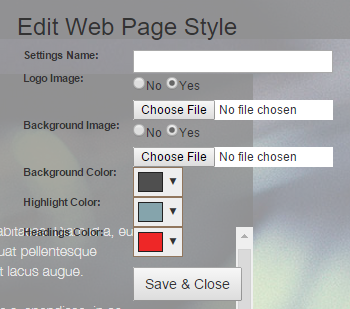
Edit Web Page Style
After saving your email style in the previous step you will be taken to a new screen which displays how the web page the user is taken to after clicking the links in your promo email will look.
Again you can edit the style of this page by changing the options displayed in the top right hand corner of the screen:
Settings Name: - Displays the name of the style you are editing, you can not change the name at this stage of the process.
Logo Image - Whether to display a logo in the top left of the screen. Logo images should be in jpg or png format. It is advised to use a png with a transparent background to blend with the page. The header of the page is 40px in height - using a slightly taller logo image will produce an 'overhang' effect as seen with the ampsuite logo in the default style.
Background Image - Background image to display behind the release details section of the page, this should be in jpg or png format. Bear in mind that the image will be resized to fit different sized screens (including mobiles) so it is best to avoid text within this image. Blurred images can work well as they do not lose quality when stretched. It is advised to use an image at least 1200px wide. You can see how your promo will look on different screen sizes by simply resizing the popup within your browser.
Background Colour - Background colour for the lower half of the screen - note that all text boxes use a semi transparent dark background so that the text is visible regardless of your chosen colour scheme.
Headings Colour - Used on the 'outstanding promos' and other headings, make sure you choose a colour which remains visible on your background.
Highlight Colour - Used on buttons, links, track numbers and the audio player.
Click the 'Save & Continue' button to save your changes. The popup will close and you will be returned to the promo creation screen.