If all licensor email addresses have been entered into an ampsuite it is possible to send a bulk email to all licensors with their statement for the selected period. Note that statements can be emailed out BEFORE being set to final, to allow licensors to check statements and request any changes before the period is finalised.
To email all licensors their statement for a period click the ... icon at the far right of the statement run in the list, and select Email Licensors. A new dialog will appear for you to enter a subject and body for the email, as shown below:
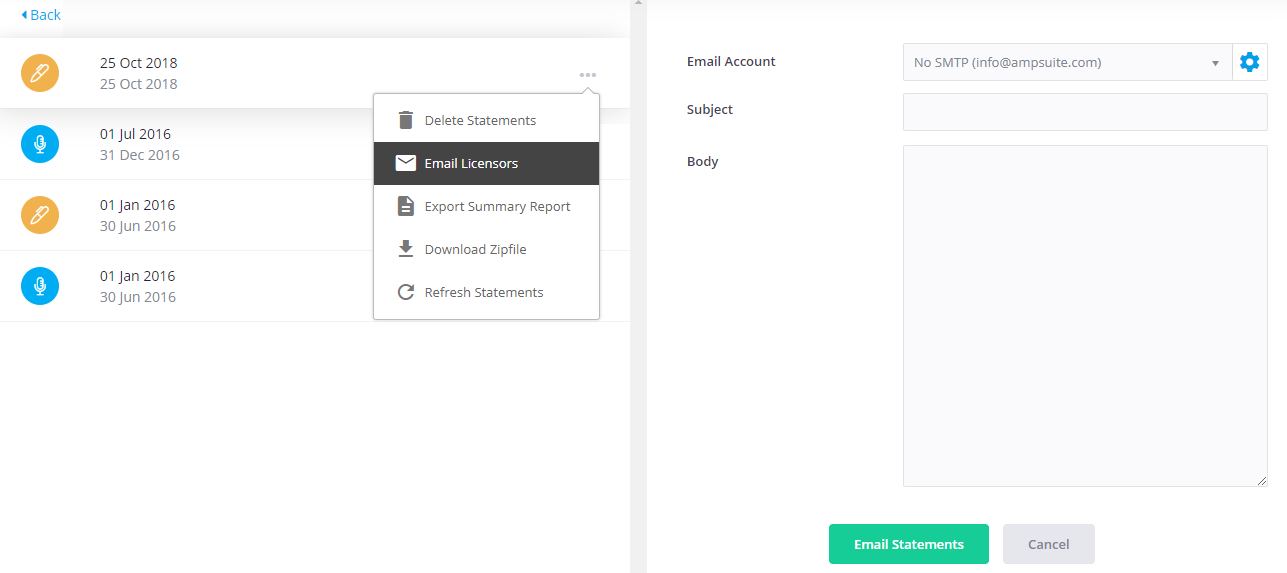
It is recommended to configure ampsuite to send statement emails using your own email (SMTP) server, this will generally increase delivery rates and also allow any bouncebacks from old or incorrect email addresses to be sent to your email address to follow up on. If you have not yet set up an email account the 'Email Account' drop down will default to 'No SMTP (info@ampsuite.com)'.
Each licensor's statement will be attached to their own email as an XLS file. If a licensor has their own ampsuite login (set up during the digital contract signing process) they will also be able to login and view / download all their statements and invoices that have been sent so far.
Although your emails will be sent if you select the No SMTP option, you may find that emails are more likely to end up in users 'junk' mail, and you will not be alerted when email delivery fails due to old or incorrect email addresses being entered in the system.
To configure your own email account to deliver statement emails, click the blue 'cog' icon to the right of the 'Email Account' dropdown to open the 'SMTP Settings' popup show below:
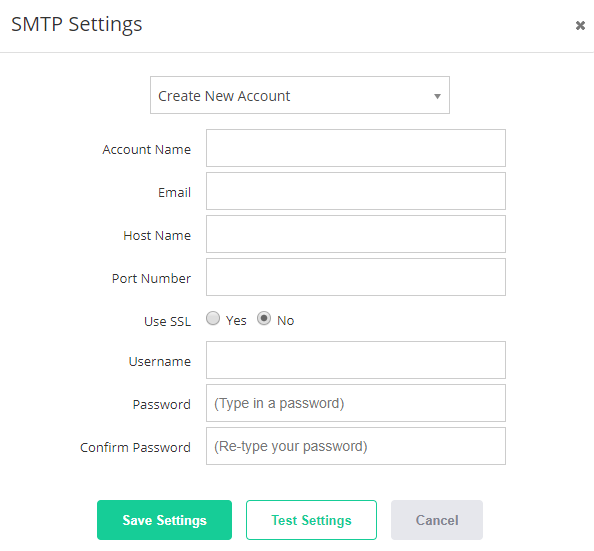
Select 'Create New Account' from the first dropdown (or select an existing account if you wish to edit / change the settings). The 'Account Name' is just a memorable name for the account which will be displayed in dropdowns for selection (e.g. 'Label Accounts Email').
The other settings should be entered according to your email provider's details (the same as you would to set up a new email account in Outlook / Thunderbird etc).
It is highly advised to click the 'Test' button after entering your account details, enter an email address to receive a test email to, and confirm you have received it before clicking 'Save Settings'. If there was a problem sending your email (such as an incorrect username / password) you will be informed so that you can correct the problem and attempt another Test before saving.
After setting up a new Email Account be sure to select it from the dropdown instead of the 'No SMTP (info@ampsuite.com) option. The last Email Account you used will be selected by default so you do not have to change it every time.
Note: To avoid exceeding hourly sending limits imposed by from providers (specifically Gmail) emails will be sent in small batches every hour - as such after clicking 'Send' you may find there is up to an hours delay in the first emails being delivered. If you are sending a large number of emails it may take several hours for them all to be sent.
Gmail Accounts:
If you are using Gmail / Gsuite as your mail provider - you will need to first create an 'App Password' to use with ampsuite, this must be entered in the Password & Confirm Password boxes instead of your normal Gmail password. You can find instructions on creating an App Password here:
https://support.google.com/accounts/answer/185833?hl=en
Make sure you are logged in to the Google account linked to the email address you are wishing to send from before performing the above steps.
When asked to select the app the password is for select "Other (Custom Name)" and enter "ampsuite" in the box that appears.
Microsoft Accounts:
As of September 16th, 2024, Basic Authentication is no longer available to access any Outlook account via SMTP. Connection is only available via OAuth2 authentication, which is currently not support by ampsuite.
You can find more information here - https://support.microsoft.com/en-us/office/modern-authentication-methods-now-needed-to-continue-syncing-outlook-email-in-non-microsoft-email-apps-c5d65390-9676-4763-b41f-d7986499a90d