Licensors Screen
In ampsuite a Licensor is any entity for whom we can generate a royalty statement, currently licensors can be any of the following:
-
Artists
-
Labels
-
Sub Accounts
- Writers
-
Any other Third Party (referred to as an "External Licensor" in ampsuite)
Depending on your systems set up ampsuite may automatically create licensors of a certain type - for example if you are set up for artist level accounting ampsuite will create a new 'Artist Licensor' each time you create a new artist on the system. You can see your current Default Licensor Type on the Accounting Settings screen - if you wish to change this please contact the support team.
A full list of currently active licensors is displayed on this screen and it acts as a central point for you to check and manage your licensors and their associated contracts and statements. You can filter the list of licensors by typing a partial name in to the Search box on the left. If your system is set up to account to multiple types of licensors (e.g. artists and labels, or artists and writers), an additional dropdown allowing you to filter by Licensor Type will also be shown.
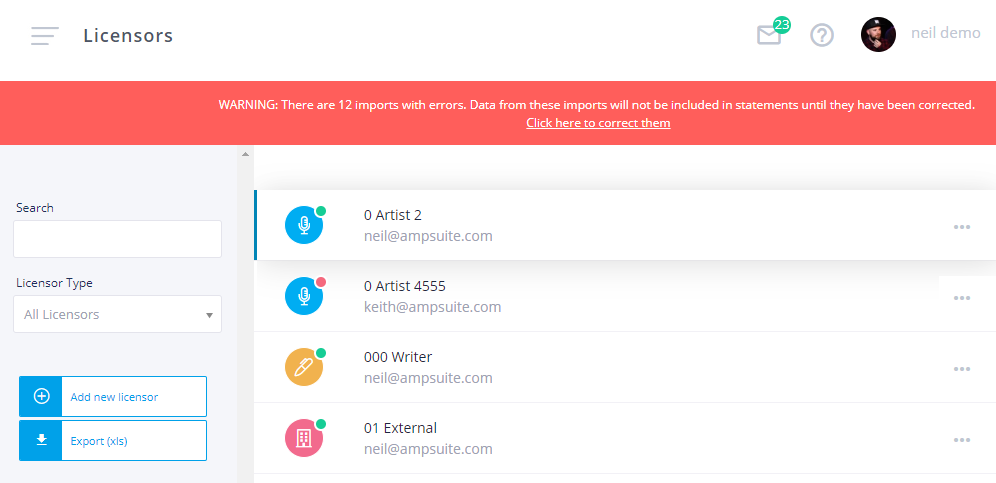
It is possible to Merge two licensors, this can be useful if you have accidentally created a duplicate licensor for example by using two different spellings of an artists name. To do this click the ... icon on the far right of their name and select Merge Licensors. See further down this page for further information on how to merge licensors.
You can Delete a licensor by clicking the ... icon on the far right of their name and selecting Delete Licensor. Note that if the licensor is linked to an active artist or label you must delete that first before you are able to delete the attached licensor and the Delete Licensor option will not be visible. Note that all unaccounted adjustments and outstanding balances associated with a licensor will be lost if you delete it, it's generally better to disabled future statement generation for them instead (see section below) unless they were simply set up by mistake.
Licensor Details
You can edit the details of a licensor by clicking on them within the list, the first tab Details contains these fields such as such as their name, email or postal address which can all be edited.
NOTE: For artist and label licensors the Licensor name field is linked to the display name of the artist or label, editing it here will also edit the name of the corresponding artist or label, so be careful when making changes here.
Some other fields of note here are:
- Licensor Group - It is possible assign one or more licensors to a named group. With licensor groups set up it is possible to run statements for different groups of licensors independently of each other, for example one group could be run monthly and another quarterly. Note this functionality is turned off by default, if you feel this may be useful please contact ampsuite support to discuss enabling this feature on your system.
- Contact Email - It's important this is entered correctly, as this is the address all contracts and statements will be emailed to for this licensor. This is also the email address the licensor should use as their username when logging in to ampsuite to sign contracts and view statements.
- First / Last Name - The licensor real name, this will be used in contracts, and is also used for writing credits when using the publishing options within ampsuite.
- Generate Statements - If you no longer wish to account to a licensor you can set this to No and no further statements will be generated. This is preferable to deleting the licensor as you will still be able to view historic data for them.
- Send Statements - If set to No then this licensor will be excluded from being sent statements when the bulk email option is used from the statements screen.
- Currency - It is possible to account to licensors in various currencies, the exchange rates should be entered when generating a new statement run.
- Payment Details - For information only, this is free text and may include things like the licensor bank account details or paypal email address. This information will be encrypted when stored on the database.
- Apply Tax - If tax should be deducted from this licensors total on each statement. Note that tax deductions are only shown on statements when they exceed the minimum payment threshold.
- Use Default Tax Rate - You can either use the default tax rate as defined in your accounting settings or apply a custom rate just for this licensor.
All other fields are for your own information only and can be left blank if not required.
The Contracts and Statements tabs shown below the Details tab give access to manage those associated with the licensor, these are covered in more detail in the contracts and statements sections of the help guide.
Creating External Licensors
IMPORTANT: Do NOT manually create artists/labels as external licensors if your system is set up to create them automatically, instead create them via the artists or labels screen. You should only create external licensors for entities which would not otherwise appear on your system.
If you need to create a new External Licensor click the Add new licensor button on the left, this will open the Licensor Details form similar to when editing a licensor as described above. The main difference being an extra dropdown for Licensor Type.
If you wish the licensor to be linked to a specific artist choose Artist from this dropdown - this will then also create an artist listing for your licensor which can be attributed to tracks and releases as normal.
If you system is set up to account to both labels and artists selecting Artist for the Licensor Type will bring up two additional dropdowns to allow you to select which artist and label you wish to link the licensor too. In this case you can either select Create New Artist or chose from one of your existing artists while selecting a new different label for this version of the artist to be linked to. ampsuite will automatically create a new External Licensor each time an artist appears on a new label if this setting is active.
Other types include External / Other - select this for anyone you need to create a statement for that doesn't fall under another more specific type, e.g. if you have licensed a track from another company for use on a compilation you could set them up in this way.
If the publishing module is enabled you will have the option of Song Writer - this should be used to any entity for which publishing rather than recording royalty statements are to be generated. Note: In some cases your system may be set up so artists can be accounted for for publishing and recording royalties under a single artist licensor, however this is not the default behaviour.
It's important that you ensure your licensor name and email address is correct, all other information can be filled in and maintained by your Licensor directly once they have been provided with a login.
Merging Licensors
Occasionally you may find that you wish to merge two licensors together, this can be useful if you have accidentally created a duplicate licensor for example by using two different spellings of an artists name.
To merge two licensors first click the ... icon next to one of the two licensors you wish to merge and select Merge Licensors - it does not matter which one of the licensors you select this option from. A new popup will appear with the licensor you just selected’s details displayed on the left hand side.
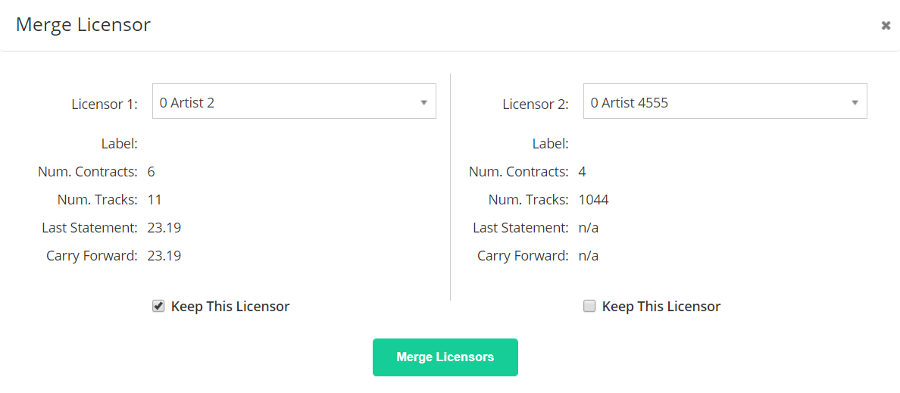
Use the dropdown on the right hand side of the popup to select the other licensor you wish to merge with the first one, you will see that the right hand side of the screen will then update with the second licensors details.
When merging licensors any remaining balances on previous statements for the licensor which is not being kept will be added as a manual adjustment on to the remaining licensors next statement. To avoid problems with unassigned balances you must not have any unfinalised statements for the licensor when performing a merge, you may get an error message if you try to do so, you must then either finalise the statement run or delete it and rerun it after the merge.
You must select which of the two licensors you wish to keep (and which will be deleted) by selecting one of the Keep This Licensor check boxes at the bottom. You may wish to use the information shown above to decide which licensor to keep, for example if there is a non 0 'Carry Forward' amount on one of the licensors but not on the other then it would be best to keep the one with the non 0 balance to avoid creating a manual adjustment correction on the licensors next statement. Remember the name of the licensor can always be edited after so base this decision on the data provided rather than just on which version may have the correct spelling.
Once you have selected which licensor to keep click the 'Merge Licensors' button to perform the merge, please note that this action can not be undone at a later date so please be careful when merging licensors. You may find that the new merged licensor contains duplicate versions of the same contracts as they have been copied over from the deleted licensor, if you wish you can manually move the tracks from one contract to another (see Contracts & Track Assignments for how to do this) and then finally delete the additional contract once all tracks have been moved. Make sure there are no outstanding adjustments on the contract before trying to delete it.