Settings & Defaults
In line with the overall ethos of ampsuite, you can easily set your most commonly-used settings as defaults which will be assigned to your artists and releases as created during the product building process covered earlier in this guide.
We will need to define the global defaults before attempting to import sales data, to view and update your settings select Settings under the Accounting section of the main menu.
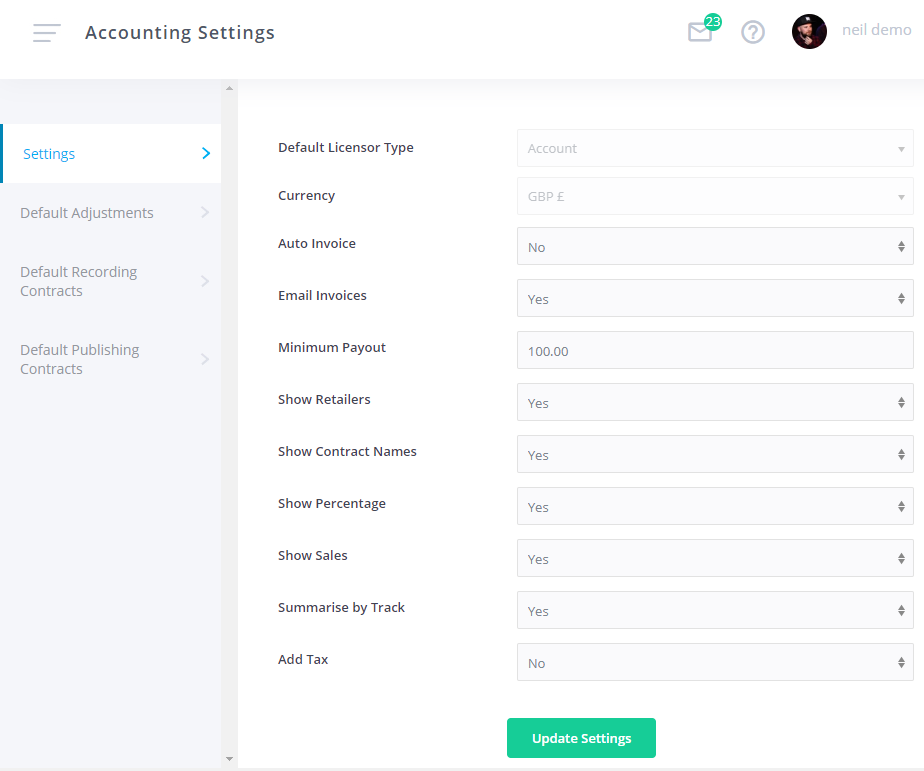
The first Settings tab contains the following options:
- Default Licensor Type: This is the main type of accounts you wish to generate using ampsuite, and may for example be Artist, Label or for distributor level clients Account. This defines the type of Licensors ampsuite will automatically generate for you, for example if your default licensor type is set to Artist - then ampsuite will create a corresponding licensor (and default contract) every time you create a new artist on the system.
- Currency: This is the default currency for your system, any statements imported in another currency that this will need an exchange rate entered to convert them to this currency. This is also the currency all analytics and sales exports will be displayed in. Note it is possible to generate licensor statements in currencies other than this by selecting a different currency for a particular licensor, but this will be the default selection otherwise.
- Auto Invoice: If set to 'Yes' then invoices will automatically be created for all statements over the minimum payment threshold and emailed to the licensors (as well as appearing within the licensors ampsuite login if they have one) along with their statements.
- Email Invoices: If set to 'Yes' when a licensor generates a new invoice via their own ampsuite login, it will be emailed to your systems default email address, as well as appearing in the ampsuite Dashboard Inbox as usual.
- Minimum Payout: Statements with a total below this amount will have the balance carried forward to the next period automatically. Statements with totals equal or greater than this amount are assumed paid out and not carried forward.
- Show Retailers / Contract Names / Percentage / Sales: Show or hide these individual columns within generated licensor statements.
- Summarise by Track: If set to 'Yes' multiple sales of the same track will be grouped together into a single line within statements where they have the same column data (e.g. same territory, retailer etc). It is advised to leave this set to 'Yes' to keep statement size down and speed up statement generation.
- Add Tax: A fixed percentage tax rate can be deducted from statement totals which are over the payment threshold. If 'Yes' is selected a box will appear to enter the desired tax rate. It is also possible to override this default tax rate for each individual licensor.
After making changes to any of the above settings click the Update Settings button at the bottom of the page to save them. Note that changes will not be reflected in past statements unless the statement run is refreshed.
NOTE: The first two settings Default Licensor Type and Currency are defined when your system is first setup and cannot be edited. If either of these settings are wrong please contact us immediately as it may be difficult to change them further down the line.
Default Adjustments / Default Contracts
The other tabs on this screen relate to settings for your Default Adjustments (see the Adjustments & Expenses section of the help guide) and Default Contracts (see the Contracts & Track Assignments section of the help guide).
As these are both covered elsewhere in the guide we will not cover them again here.