Adjustments & Expenses
An adjustment (sometimes referred to as 'manual adjustment') is any amount of money which has been assigned to a statement by means other than via a sales statement import. This includes expenses which in ampsuite are treated as 'negative adjustments'.
Adjustments are always assigned to a specific contract belonging to a licensor (this is important if you are using cross collateralization and do not want adjustments to be offset by other contract amounts). Adjustments can be input to ampsuite in 3 main ways, either by entering them manually one at a time, importing them via a specially formatted spreadsheet or by using the 'default adjustments' option.
Manually Entering Adjustments
Individual adjustments can be added manually to a specific contract via the licensors screen, the video below shows how to access the Adjustments section of a contract by first clicking on the Licensor, followed by the Contract, and then selecting the Adjustments tab.
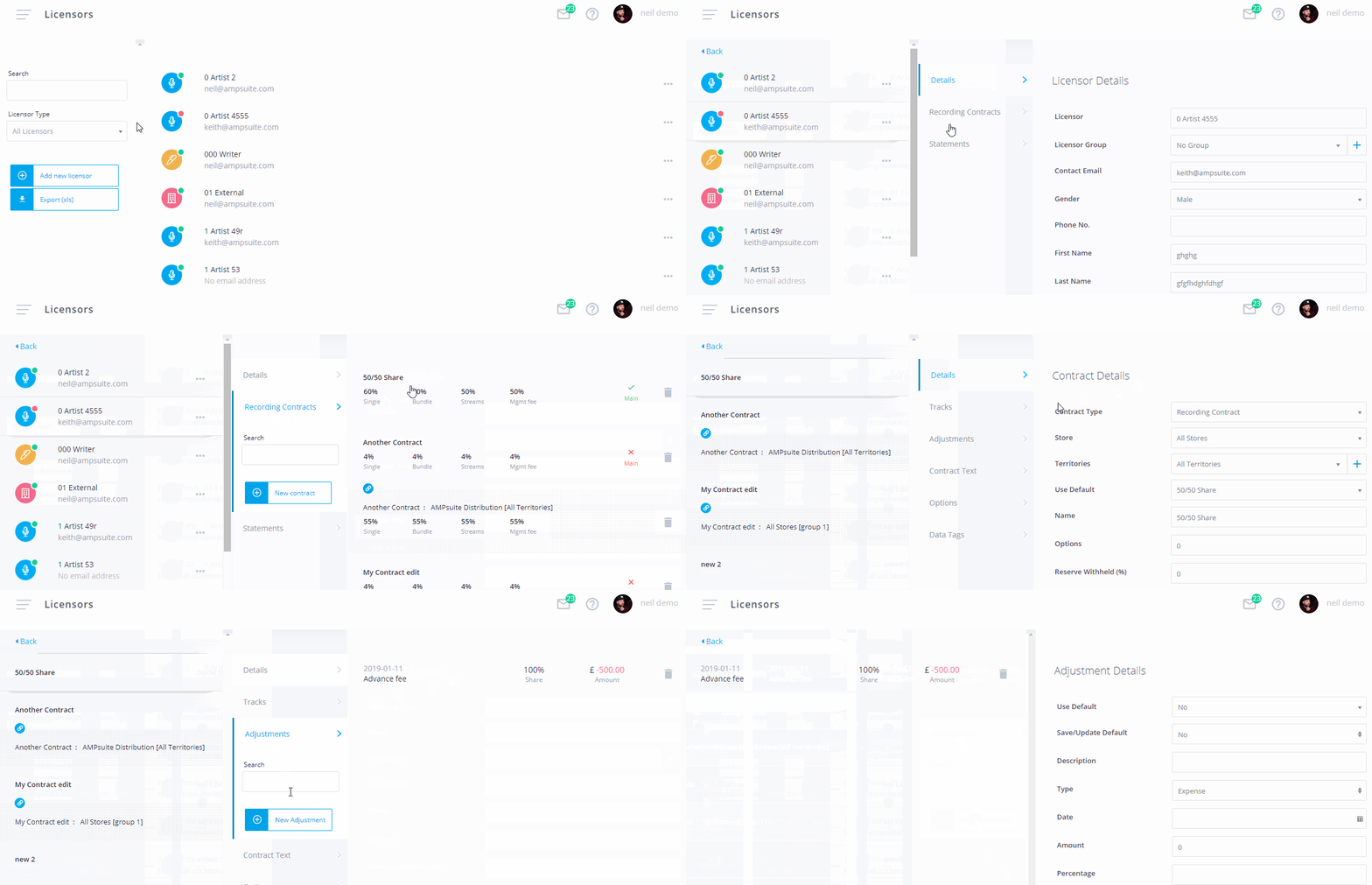
To add a new adjustment click the New Adjustment button on the above tab, this will bring up the Adjustment Details form. The available options on this form are described below:
- Use Default - The first dropdown allows you to select to use one of your 'Default Adjustments' if you have any set up (see further down this section for more information on setting up Default Adjustments). If you do not wish to use a default adjustment leave the dropdown on 'No'.
- Save/Update default - If you are using a default adjustment from the dropdown you can chose to update the details of the default adjustment at the same time as creating this manual adjustment by setting 'Save/Update default' to 'Yes'. If 'No' is selected for 'Use Default' but this checkbox is ticked it will create a new Default Adjustment within your Accounting Settings based on the values you enter.
- Description - A description of the reason for the adjustment, this will be displayed on the licensors statement e.g. "Artwork Cost" or "Mastering"
- Type - Select either 'Expense' or 'Income' depending on if the amount should be deducted from or added to the licensors sales revenue.
- Date - The date assigned to the adjustment dictates which accounting period it will appear in - make sure that the date is within the statement period you plan on generating, adjustments with dates prior to the statement start date will not be included.
- Amount - The monetary amount of the adjustment, this must be in your systems currency.
- Percentage - The percentage of the amount which is to be added to the licensors statement.
- Apply Reserve - Whether or not the reserve withheld defined on the contract should be applied to this adjustment.
- Add Licensor - If this adjustment applies to more than one licensor you can assign it to additional licensors/contracts and simply enter the percentage share for each additional licensor. Note that this will create individual adjustments on each contract which must then be edited individually if changes are required after they have been initially created.
Once you have completed all the details click the Save Adjustment button at the bottom of the form to create the adjustment. It is a good idea to double check the details are correct after saving - expenses will appear with figures in red in the list while income will appear in green.
You can edit the details of an existing adjustment (if it has not yet been included on a statement) by clicking on it's description within the list. You can delete an adjustment by clicking on the trash can icon next to it on the far right - you can not delete an adjustment once it has been included on a statement, or if it was imported via the adjustments import (instead you must edit the import sheet and delete / reupload it).
Default Adjustments
You can set up a number of Default Adjustments which you may wish to apply to the majority of your release, these might include for example charges for artwork, mastering or promotion.
You can setup and edit Default Adjustments from the Accounting Settings screen accessed by selecting Accounting and then Settings from the main menu. Select the second tab Default Adjustments to view any previously created default adjustments, as shown in the screenshot below:
IMAGE: https://www.ampsuite.com/uploads/documentation/v5/default_adjustments.png
To add a new default adjustment click the New Adjustment button on the left hand side of the tab (shown above) to open up the Default Adjustment form, the options on this form are described below:
- Description - A description of the reason for the adjustment, this will be displayed on the licensors statement.
- Type - Select either 'Expense' or 'Income' depending on if the amount should be deducted from or added to the licensors sales revenue.
- Amount - The monetary amount of the adjustment, this must be in your systems currency.
- Percentage - The percentage of the amount which is to be added to the licensors statement.
- Charge Per Track - Normally default adjustments are split equally between all tracks on a release, you can override this by choosing one of the 'Charge Per Track' options which allows you instead to choose an amount and percentage to be applied to each individual track on the release. You can choose to apply this setting to only 'Albums/EP's' (in which case releases marked as 'Singles' will use the standard per release amount) or 'All Releases' in which case the standard per release amount is ignored on all types of release.
In the case of the standard per release default adjustments the amount is first divided equally between all tracks on the release (except for those marked as being a continuous mix) to get the per track amount.
In both cases the per track amount is then divided between all contracts associated with the track based on the contracts 'Single %' - this is done using the same method as the 'Full Amount' split type used when importing expenses (see Importing Adjustments & Expenses below). This means the contract percentages are rebased so that the total amount is 100%. e.g. if a track has two licensors each on 25% using this split type they will each get 50% of the expense assigned to their contract.
Applying Default Adjustments
There are two ways to apply default adjustments to a release, firstly if you have one or more default adjustments set up in your settings, a dialog to Apply Standard Charges (shown below) will appear whenever you set a release to final.
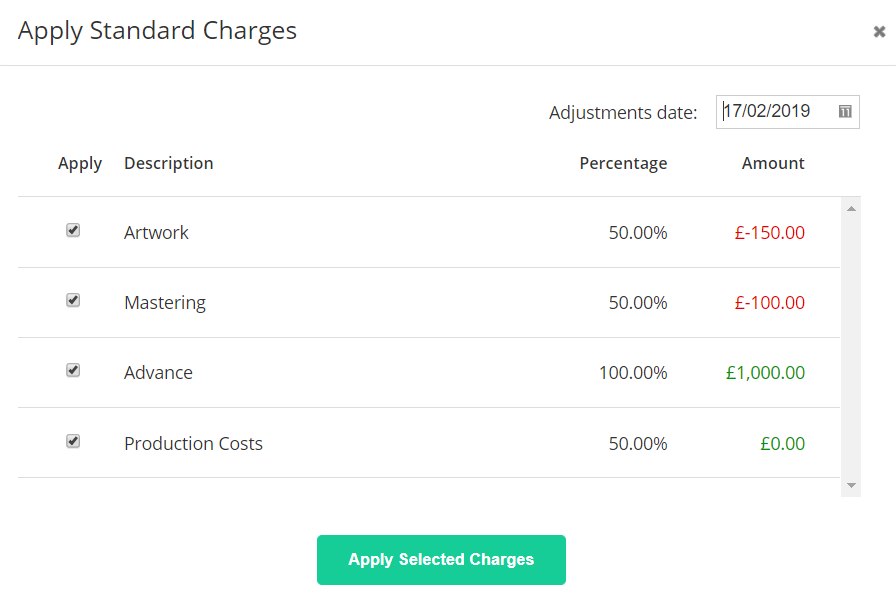
This dialog can also be accessed manually by clicking in to any Final release and selecting the Adjustments tab on the left hand side, and clicking the Apply Defaults button. Note that this tab / button is only visible in releases that are already set to final. If charges have already been applied a Remove Defaults button will be displayed instead.
The dialog lists all currently available default adjustments, with all of them ticked by default. If you only wish to apply some of the charges simply untick the ones you do not wish to add to this release.
It is important to set the 'Adjustments Date' in the top right so that the created adjustments will fall within the correct accounting period when generating statements, by default it is set to today's date.
Once you have set the desired date and selected the adjustments you wish to apply click the button on the bottom left labelled Save & Apply Selected Charges. If you do not wish to apply any of the default charges to this release simply click the Save Without Applying Charges button instead (this is only visible when setting a release to final).
IMPORTANT: Once default adjustments have been applied to a release any changes made through the Settings screen will not affect the already assigned charges. If you have made changes to the Default Adjustments via the Settings screen and wish to apply them to a release which has already had charges added you must first remove the current charges (by clicking the Remove Defaults on the Adjustments tab from within the release) and then apply them again.
Importing Adjustments & Expenses
You can import adjustments and expenses into ampsuite using a specially formatted excel file containing the relevant data. Select Import Accounts from the Accounting section of the main menu.
This screen lets you import sales statements from your distribution partners and stores, as well as adjustments using ampsuites adjustments import. Each row in the table here equates to a previously imported sales sheet.
IMPORTANT: All adjustments on ampsuite are positive payments to the artist/licensor unless a negative sign is placed in front of the amount.
Please make sure all expenses are entered as negative amounts to avoid incorrectly paying out extra money to artists!
To import an adjustments file first click the Upload statement button on the left of the 'Import Accounts' screen in the same way you would to upload a sales file. You will notice that the popup contains two tabs (or 3 if publishing is also enabled) - click the Adjustments Import tab to upload a new adjustments file.
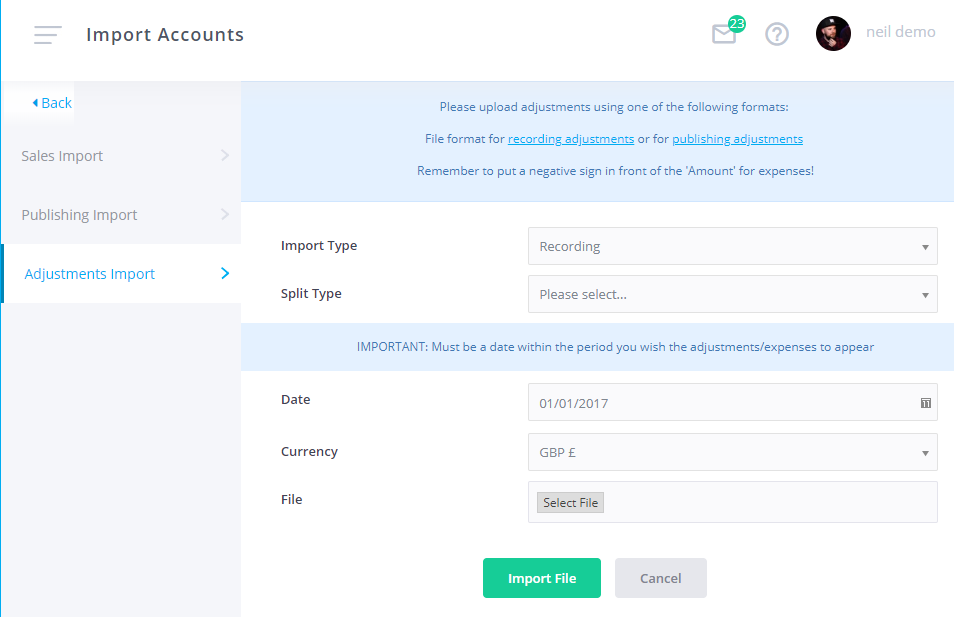
- Import Type: If you have both recording and publishing modules enabled on your system, the Import Type dropdown lets you select which type of accounts this file applies to.
-
Split Type: This decides how the amounts in the file are split between the various licensors associated with the tracks, there are two split types to choose from:
Contract Percentages
Expenses will be split based on the single % of contracts attached to a track. e.g. if a track has two licensors each on 25% using this split type they will each get 25% of the expense assigned to their contract.
Full Amount
Expenses are split based on the single % of contracts attached to a track but rebased so that the total amount is 100%. e.g. if a track has two licensors each on 25% using this split type they will each get 50% of the expense assigned to their contract. - Date: Select a date to assign data from this file to, this date must be within the date range of the statements you wish to produce. Note that to be consistent with the sales upload process ampsuite will use this date in statement generation rather than any dates which may be contained within the uploaded file.
- Currency: Select the currency the data in the file is in. Note that all data within a file must be in a single currency. If you select a currency other than your system's default you will be asked to enter an exchange rate.
- File: The adjustments file to be uploaded. See 'Adjustments Import Template' below on how this file should be formatted prior to uploading.
Once you have completed the above fields click the 'Import File' button to upload the file and begin processing. Note that depending on the size of the file it may take anywhere between a few seconds and several minutes for the initial upload and processing to take place.
Adjustments files can produce errors in the same way as sales statements, please see Import Errors under the Importing Sales section of the help guide for how to correct these.
Adjustments Import Template
You can download a sample file of the current adjustments import template using the link displayed at the top of the form. Please make sure you are using the latest version of the template as older versions may no longer be supported, and note there is a different file format for publishing adjustments compared to recording adjustments.
A screenshot of the standard recording adjustments import template is shown below:
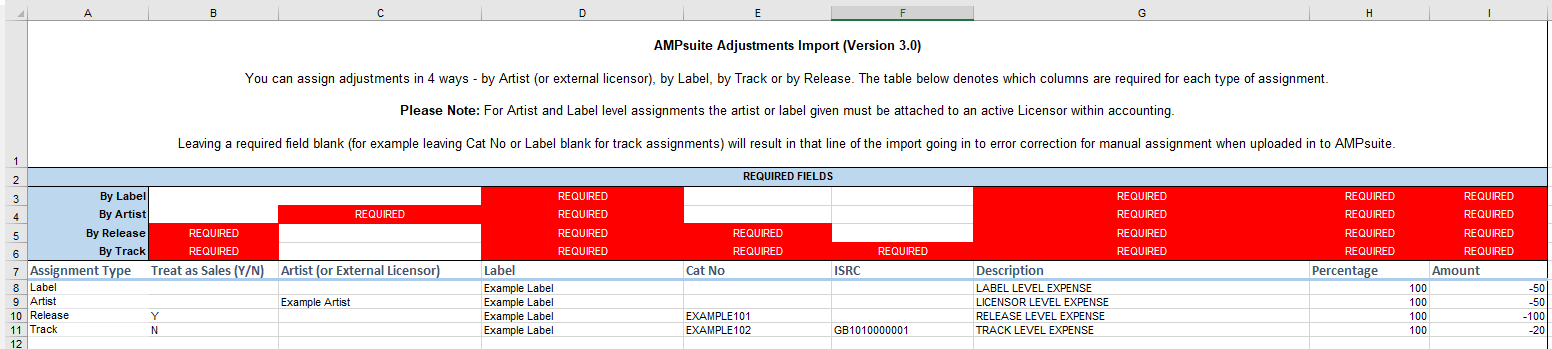
Adjustments can be assigned in one of 4 ways, these are defined under the Assignment Type column, the 4 types are:
- Artist - Assign the adjustment to a specific artist (or external licensor) - this type of adjustment is not linked to any specific track or release and will be added as a single amount to the artists default contract. The artist/external licensors name should be entered in the Artist (or External Licensor) column exactly as it appears on ampsuite. Treat as Sales (Y/N), Cat No and ISRC should be left blank.
- Label - This is only available if your system is set up to account to labels (or labels AND artists) - this type of adjustment is not linked to any specific track or release and will be added as a single amount to the labels default contract. the labels name should be entered into the Label column exactly as it appears on ampsuite. Treat as Sales (Y/N), Artist (or External Licensor), Cat No and ISRC should be left blank.
- Release - Assign an adjustment to an entire release, the amount will first be divided equally between all tracks on the release (other than continuous mixes) and then split between individual licensors on each track as defined by the associated contracts as well as the Split Type selected for the import. Artist (or External Licensor) and ISRC should be left blank.
- Track - Assign an adjustment to a specific track on a specific release. The amount will be split between all licensors on the track as defined by the associated contracts as well as the Split Type selected for the import. Artist (or External Licensor) should be left blank.
As well as the assignment type the other columns of interest on the import include:
- Treat as Sales (Y/N) - This only applies to rows where the Assignment Type is either Track or Release and means that the amount listed for this row will appear on statements as if it had been imported via a sales statement rather than an adjustments import. This can be useful for example for importing physical sales which may not be reported elsewhere on any sales statements.
- Artist / Label / Cat No / ISRC - These 4 columns are used to specify where the adjustment should be applied to, note that red headings at the top of the file show which of these columns must be completed (or left blank) depending on what 'Assignment' type is selected. For example, for an Assignment Type of 'Release' the 'Label' and 'Cat No' fields are required, and the 'Artist' and 'ISRC' fields should be left blank.
- Description - A description of the reason for the adjustment, this will be displayed on the licensors statement e.g. "Artwork Cost" or "Mastering"
- Percentage - The percentage of the adjustment to be assigned to licensors, this percentage is applied before all other splits so for example entering a Percentage of 50% and amount of $100 is the same as entering a percentage of 100% and amount of $50.
-
Amount - The monetary amount of the adjustment, note that all amounts within a single file must be in the same currency (as selected at import). You should not include the currency symbol or apply any special formatting to this (or any other) column. Decimals should be represented with a dot and not a comma.
IMPORTANT: Remember to put a negative symbol in front of expenses!
Excluding Licensors From Track / Release Level Adjustments
In some cases you may wish to exclude one or more licensors on a track from being included within the adjustments assigned to a specific release or track, for example you may wish to exclude a remixer from being liable for artwork expenses on a release that should only be recouped from the main artist(s).
You can mark a specific licensor on a track as excluded from track and release level adjustments by selecting Exclude from track & release level adjustments from within the contract selection dropdowns on the track (see Method 1: Edit Release / Track of the Contracts & Track Assignments help guide page).
Adjustments will then be divided among the remaining licensors on the track as if this licensor were not present. If you already have imported adjustments which are affected by this change you will need to refresh the affected imports as well as any statement runs for the changes to take effect.