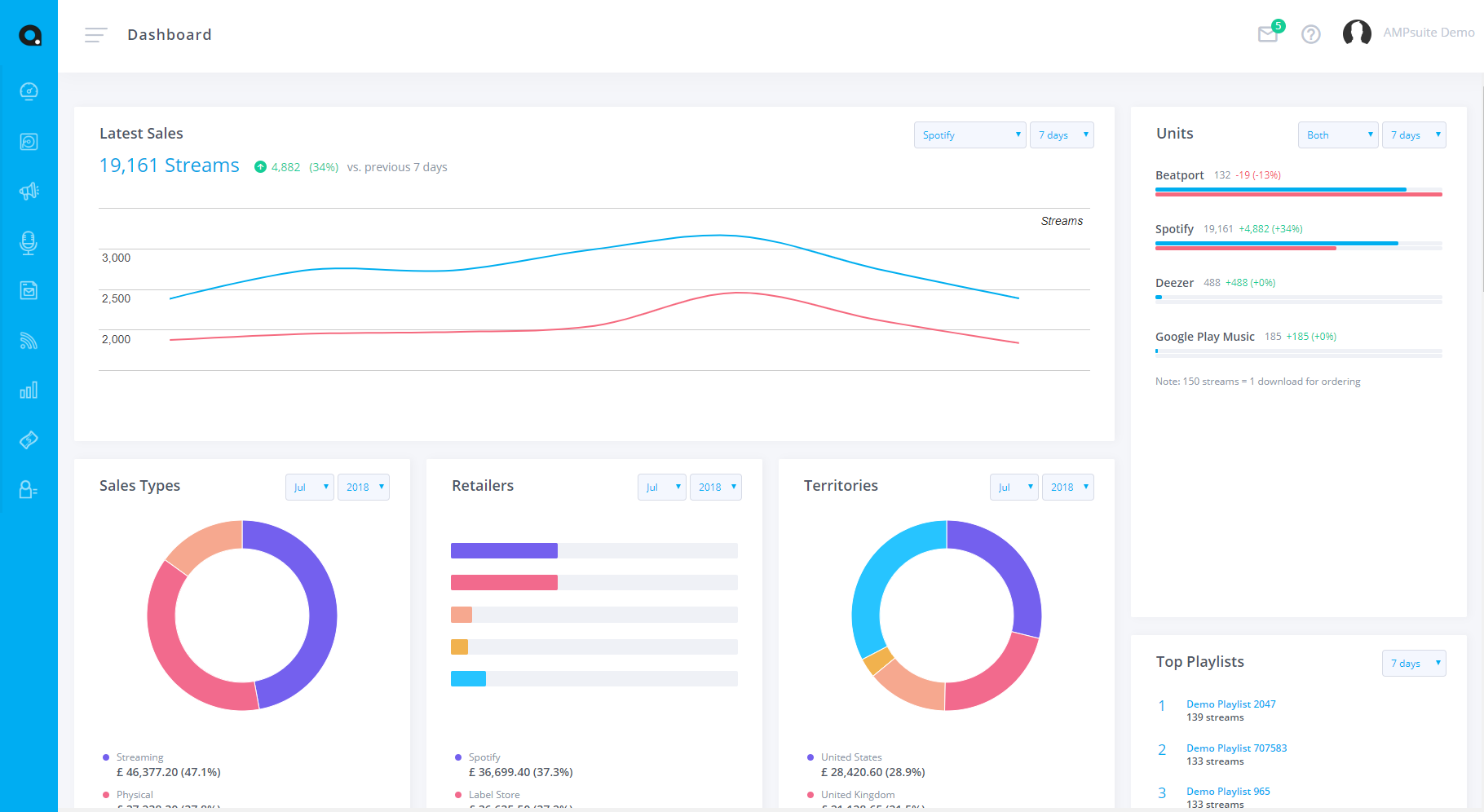
Upon your first sign in, you will be confronted with the Dashboard view. It may be looking a little empty right now but will update to show an overview of your sales once data is available. The dashboard is made up of a number of 'widget' which can be moved around, to place information you would most like to see at the top of the page. If you are an ampsuite distribution client, the dashboard will contain a number of widgets which show daily sales from a number of stores such as Spotify, Beatport and others where daily sales feeds are available. For non distribution clients the sales widgets will be linked to accounts you import into the system and will show an overview of the latest period.
User Details
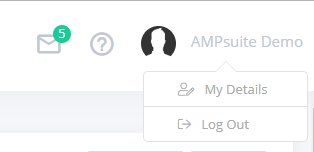
In the top right of each page you will see three icons as shown in the screenshot to the left. The first will take you to your inbox - where you will receive notifications such as when a licensor signs a contract, or updates from ourselves such as system upgrades or usage tips.
The second icon, the ? in a circle, will take you to the help guide section for the page you are currently viewing.
On the far right you should see your username displayed, clicking on this will open a sub menu allowing you to edit your user details, or log out of the system.
For now, click 'My Details' from this menu - an overlay will pop-up allowing you to enter in your personal details, we suggest entering a new memorable and secure password here and you can even upload a profile picture if you so desire.
Company Details
You will want to make sure your company details are correctly entered and fill in any blank fields, these details are used throughout ampsuite including on any outgoing emails such as newsletters and promos.
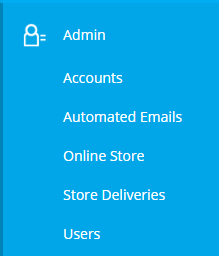
Select the 'Admin' section of the main menu (pictured) and select the 'Accounts' option by clicking on it. This will take you to the accounts page. For now you should only have one account listed on this page, this is the main company linked to your ampsuite account. Click on the row to edit the details and enter your company name, email and address - these details will appear on statements and emails sent out via ampsuite.
Most other fields are optional - you may want to enter your phone number and social media links if you want these to appear on your newsletters and promo mail outs.
Click the Update Details button at the bottom of the form to save these changes.
For more information about managing and updating company details see the accounts section of the help guide.