Statements Screen
Once you are happy that all of your sales for the current accounting period have been imported, all errors have been corrected and your adjustments have been made for each Licensor adequately you can generate a statement run ready to send out to your Licensors.
Click on Statements under the Accounting section of the main menu to see the Statements view (shown below).
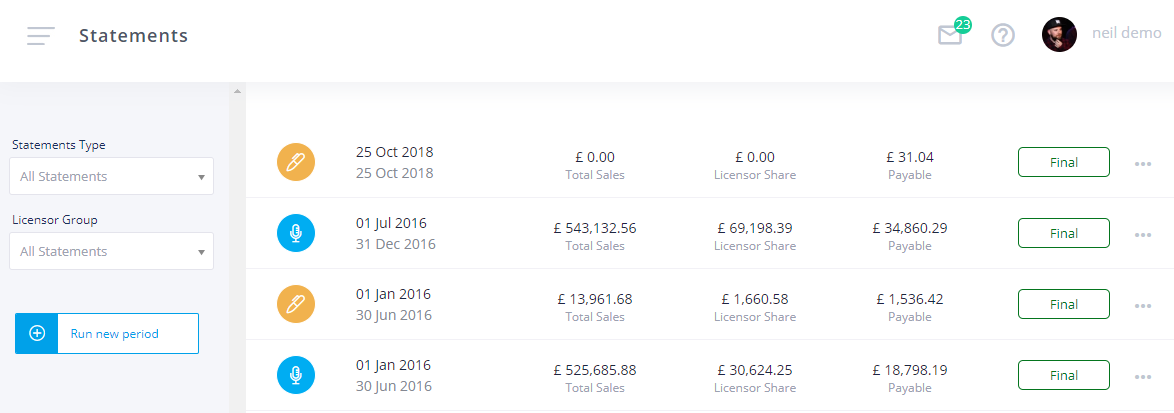
If you have already generated one or more statement runs previously you will see them displayed here with the following information:
- Type - An icon to indicate if these statements are for artist, labels, writers etc.
- From / To - The period the statements relate to. It is recommended that statement periods start on the 1st of a month and end on the last day of a month. Statement runs for the same type of licensor cannot overlap.
- Total Sales - The total incoming sales imported in to ampsuite for the period, this does not include adjustments/expenses.
- Licensor Share - The Licensors share of total sales, this does not include adjustments/expenses.
- Payable - The amount due to be paid out to Licensors for this period, including sales, adjustments/expenses, carry forward amounts and with withheld and minimum payment amounts taken in to account. If you click on this figure you will be taken to a screen where you can view and download each individual statement within the run.
- Draft / Final - Whether this statement run has been made final. Once a run has been made final no further changes can be made to the statements. You must make the previous period's statements final before moving on to the next period.
Generating Statements
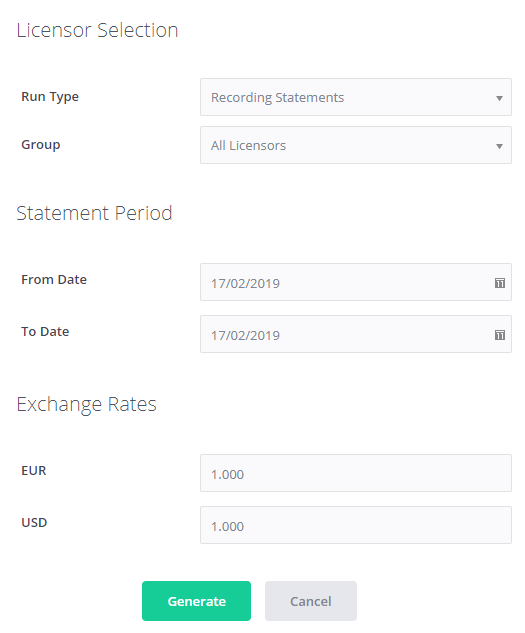
Click the Run new period to create a new Statement run, this will display the dialog shown below, which will allow you to set the parameters for your next statement run.
Licensor Selection
The first set of options under the Licensor Selection sub heading allow you to select which licensor you wish to include within this run. If you have both recording and publishing accounting modules activated on your system you can select to run either separate Recording and Publishing Statements, or Combined ones, using the Run Type dropdown.
If your system is set up to account to both labels are artists you may see a Licensors drop down to pick between generating statements for All Licensors, Artists (and Other/External Licensors) or Labels.
If Licensor Groups are enabled on your system you can select to run statements for a specific subset of licensors, for example you might create one group for licensors who require monthly statements, and another for licensors who require quarterly statements. You can use the Not in a group option to select all licensors who do not belong to a specific Licensor Group. Note that this functionality is disabled by default, if you think you require it please email us to discuss this first.
Statement Period
Select the From and To Date for this statement period. These dates are used to determine which imports and adjustments are included within the period, it is important that you select a date range that covers the dates you have used on all imports not already within a period, otherwise these sales will not be included in statements. We recommend using a From Date of the 1st of the month, and a To Date of the last day of a month, as it will make it easier to keep track of your period. The next period should start the day after the previous period ended to avoid gaps.
IMPORTANT: Statement periods must be run in order, due to unpaid balances from previous periods being carried forward in to the next. As such you can not go back and run statements for an earlier period if you have already run them for more recent dates for the same set of licensors.
Exchange Rates
You can also input any Exchange Rates to be used on the outgoing statements, if all your statements are paid in your systems default currency you can leave all these rates on 1 as it will not make any difference. If you require to account to someone in a currency which is not shown here please contact us, and we can add any required currencies for you.
Once you are happy with your period settings click the Generate button at the bottom of the form.
NOTE: On most systems, clicking generate will automatically refresh all imports within the selected date range, to make sure any changes you have made to contract percentages or track assignments since uploading are included, before the statements are generated.
In some cases your system may allow you to bypass doing a full import refresh, this will reduce the time taken to generate your statements, but may result in recent changes you have made to contract percentages or track assignments not being included in the statements. If this option is enabled you will see the following dialog appear after clicking Generate:
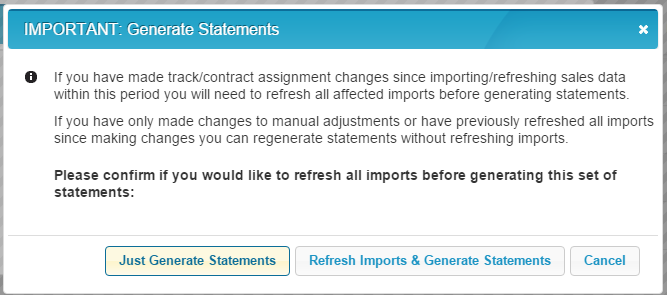
You are given two options; which you choose will depend on what changes you have made since last refreshing your sales imports:
- Just Generate Statements - If all sales imports are up to date and you have not made any changes to contract percentages or track assignments since they were imported you can chose this slightly faster option to just generate the statements without refreshing sales imports for the period first.
- Refresh Imports ∓ Generate Statements - This option refreshes all sales imports for the period before then generating the statements themselves. You must use this option if you have made changes to contracts or track assignments since importing your sales documents or the changes will not be reflected in your statements.
IMPORTANT: If you are not sure which of the above options to chose it is always best to go for the slower Refresh Imports & Generate Statements option to be sure that all recent changes will be reflected correctly in the statements.
Earlier Adjustments Warning
As with sales imports, adjustments and expenses are only included on statements if the date of the adjustment is between the start and end date of the statement period being generated.
To avoid missing out adjustments which may have accidentally been created with incorrect dates, ampsuite will display a warning popup showing any adjustments with a date earlier than the start date of the period being generated.
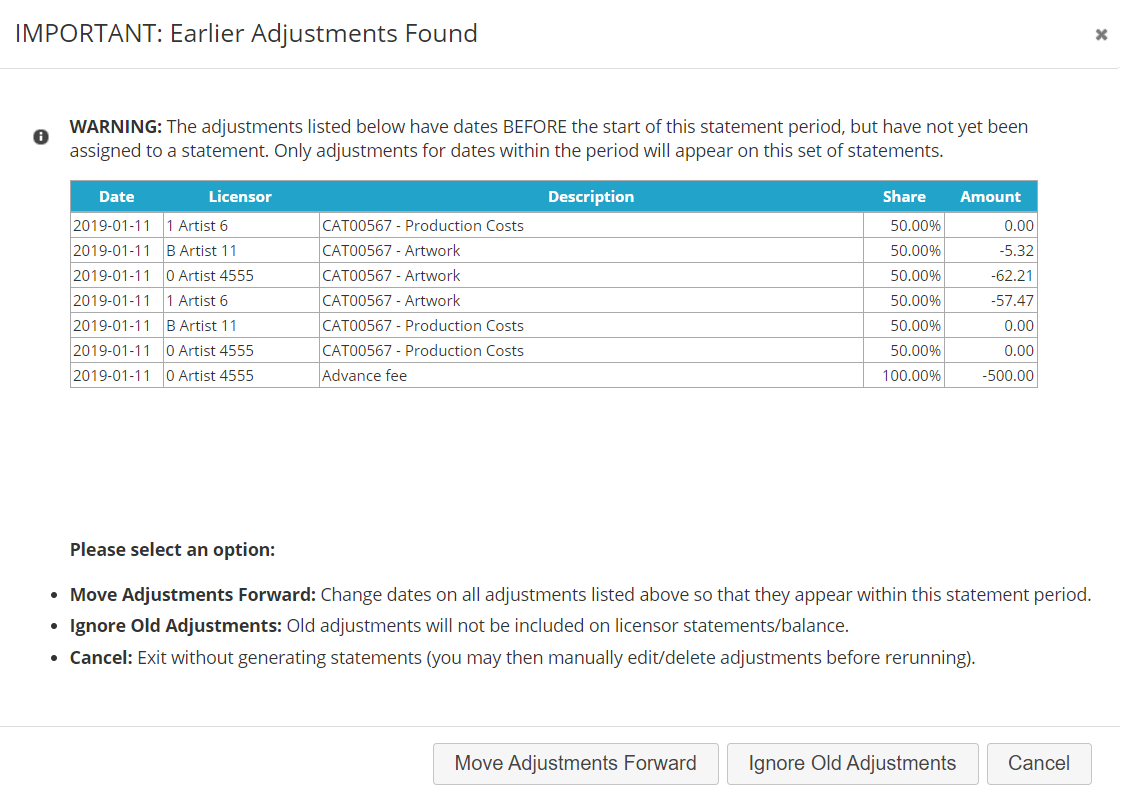
You have 3 available options at this point:
- Move Adjustments Forward - If you want to include the adjustments shown within the statements you are currently generating select the 'Move Adjustments Forward' option which will update the dates on all displayed adjustments to be the start date of the new statement period.
- Ignore Old Adjustments - Alternatively you can choose to 'Ignore Old Adjustments' which will leave the dates on the displayed adjustments as they are currently. Note that this same warning will display every time statements are generated until the adjustments are updated or deleted to fix the issue.
- Cancel - If you wish to manually correct the adjustments before continuing click 'Cancel' to abort this statement run, allowing you to make changes before attempting to generate it again later.
Refreshing Statements
Any changes you make within ampsuite after a statement run has been generated will not be reflected in the statements until you choose to refresh them. To refresh a set of statements click the ... icon to the right of the run and select the Refresh Statements option (shown below).

As with generating a new statement run, refreshing will cause all imports to be refreshed also, it is possible that the changes you have made may result in previously corrected imports to bring up new errors, if this happens an error icon will be displayed next to the run and the red warning banner will appear at the top of the screen. You will need to go back to the Import Accounts screen to correct these errors, as described in the Importing Sales section of the help guide, before returning to the Statements screen after all errors have been corrected to refresh the statements again.
After successfully refreshing a set of statements you may find some figures have changed in such a way to trigger warnings on ampsuite, if this happens the Status indicator will display a yellow warning icon, as seen in the screenshot below:

Warnings can occur if one or more statements have already been marked as 'Paid' or an Invoice has been generated for a statement, and the payable amount has since changed.
NOTE: Warnings only appear if the statement was previously marked as paid, or had a generated invoice, and the amount changed. Unpaid statements and those without invoices will not show a warning icon, even if the payable amount or balance has changed since refreshing.
To fix any errors firstly click into the statement run to view a full list of the statements.
You will see that one or more statements will have the same yellow warning indicator displayed where the Paid / Unpaid indicator would normally be, you can filter to just view statements with warnings to changing the Paid Status dropdown to 'Warnings'.
To fix or dismiss each warning click on the warning status icon next to a statement to display the Fix Warnings dialog shown below:
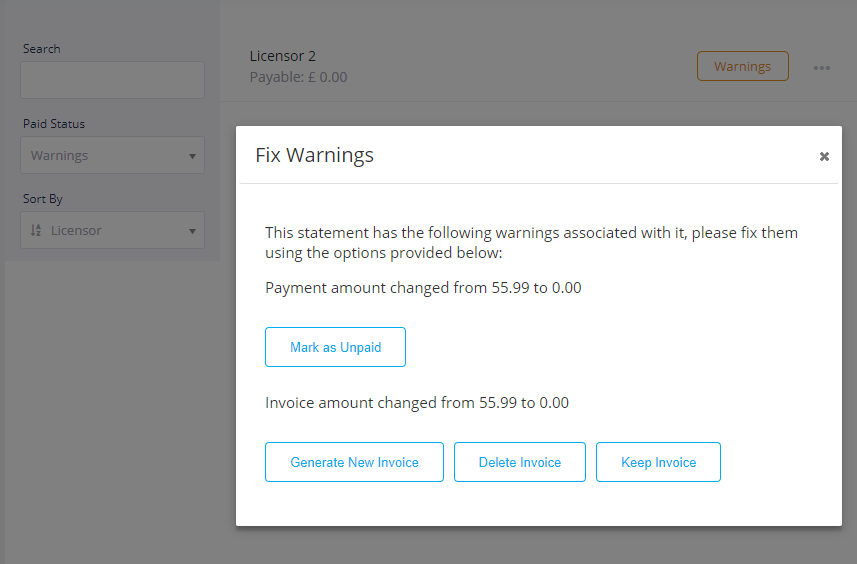
Depending on the type of warning you will either be given the option to Mark the statement as Paid / Unpaid or Delete, Keep or Generate a New Invoice. Note that ampsuite will not inform the licensor of changes made to invoices, although they may download the latest version from their ampsuite licensor login.
Note that a statement run cannot be made final (and thus the next run cannot be generated) until all warnings have been fixed.
Once a statement run has been made final you can no longer make changes to it or refresh the statements. It is advisable to wait until just before generating your next statement run before making the current one final, to allow for changes to be made after licensors have received their initial statements.